ASPL User Guide v 1.00
© 2025 Bassem W. Jamaleddine
1-2
Use the ASPL calculator to do different type of algebraic group operations on your computer: various set operations, set partition operations, sequence alignment operations, and similarity calculation operations.
The set operations are performed by symbolic mnemonics, called setops, that acts on dataset objects whether they are assigned to identifiers (also called set variables), or saved as anonymous groups on the stack. Here is a list of the typical setops: f& fU f\ fD fP d& dU d\ dD dP g& gU g\ gD gP.
Likewise, the sequence operations have their own symbolic mnemonics, called seqops, that align dataset objects. Here is a list of the typical seqops: f%& f%U f%\ g%& g%U g%\ d%& d%U d%\.
The similarity command, or its abbreviation sim, calculates the similarity by breaking the datasets into their consistuent subgroup labels and element names, then analyzing them by looping through mining routines, to be finally displayed on your terminal.
All ASPL set operators perform group operations on set variables, therefore, they are termed setadic operators. The set operator can be niladic, that it can be issued by itself without following it by any arguments, in which case the operator sources its operands from the anonymous groups saved on the answer stack.
This makes ASPL the first interpreter to provide a setadic symbolic language to collect various datasets and to do comparative analysis on them.
The following sections address some key nomenclature and the symbolic notation adopted in ASPL operators.
■ WHAT IS A GROUP
The following figure shows groups, subgroups, and their elements. There are three groups labeled g1, g2, and g3. ASPL path containment can span multiple groups and subgroups along their elements.
The labeled groups can be assigned to ASPL variables. For instance, v1, v2, and v3 are three ASPL variables that represent the groups g1, g2, and g3 respectively. ASPL setadic operators can then perform set operations on these variables. For instance to get the union of all three groups: gU v1 v2 v3, to get their intersection: g& v1 v2 v3, to get their difference: g\ v1 v2 v3, to get their symmetric difference (and excluding their intersection): gD v1 v2 v3, and to get the set partition: gP v1 v2 v3.
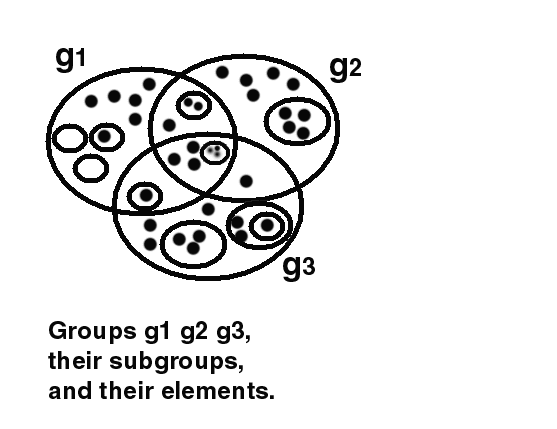
Notice the mnemonic of these four basic set operators: gU, g&, g\, gD, and gP, in which the first letter is a lower case g depicting the subject on which the operation will take place (that is the group), and the second letter (either one of U, &, \, D, and P) depicting the operation type. These four operators do the following operations, respectively:
Instruction      Operation
-----------    -----------------------------------------------------------------
gU v1 v2 v3    get the group union considering the subrgoups and elements
g& v1 v2 v3    get the group intersection considering the subrgoups and elements
g\ v1 v2 v3    get the group difference considering the subrgoups and elements
gD v1 v2 v3    get the group symmetric difference considering the subrgoups and elements
gP v1 v2 v3    partition the groups, subgroups, and their elements
The subject, denoted with the first letter 'g', is to consider both subgroups and elements in their respective groups, when performing the operations.
A set operator is a word composed of two parts: the first letter denotes the subject, and what follows it denotes the type of operation. Looking at the operations listed above, all four of them perform the operation on the group.
One can choose to perform these operations, and consider the subgroup labels in these groups, in which case the subject is denoted with these operators starting with the letter 'd' to form the following symbolic operators: dU, d&, d\, and dP.
To consider just the elements in these groups, the letter 'f' is used as the subject, and the symbolic operators are: fU, f&, f\, and fP.
Instruction      Operation
-----------    -----------------------------------------------------------------
fU v1 v2 v3    get the elements union in the groups v1 v2 v3
f& v1 v2 v3    get the elements intersection of the groups v1 v2 v3
f\ v1 v2 v3    get the elements difference between the groups v1 v2 v3
fD v1 v2 v3    get the elements symmetric difference between the groups v1 v2 v3
fP v1 v2 v3    get the elements partition of the groups v1 v2 v3
First Letter     Subject of the Operation
------------   ---------------------------------
   g            groups
   d            subgroups in the groups
   f            elements in the groups
   c            checksum of subgroups and elements
   y            elements in the groups considering fuzzy naming
■ ASPL STARTUP
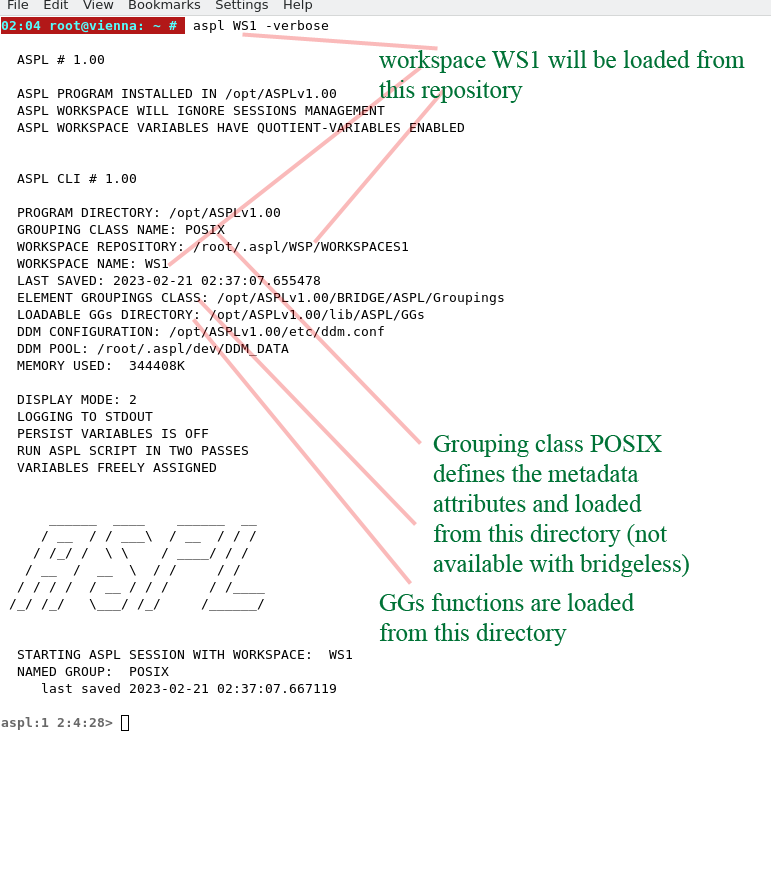
Starting ASPL in verbose mode will also reflect where ASPL loads its components at startup as shown in the following figure.
■ DISPLAY MODE
The v command displays the symbol table showing the variables from the end user perspective, and the display mode can be set to a higher number to show more information.
At the ASPL prompt, type dm to print the current display mode of your session. The display mode refers to the way the symbol table is printed on your terminal. You can select one of five display modes: 1, 2, 3, 4, and 5. The higher the number the more verbose the symbols are displayed. The following table shows the various display modes.
Mode    Description
-----   ---------------------------------
dm 1    simply tabulated output
dm 2    extended tabulated output
dm 3    simply canonical output
dm 4    extended canonical output
dm 5    really extended canonical output
Whenever a variable is updated (or reassigned), ASPL archives the previous data of the variable. The command v displays the symbol table, and the command v sorted displays the symbol table by showing all the archived variables. The archived variables are typically hidden. If your product has been configured to use the arc variables then you can append the letter A to any of the display mode to show an extended output of the arc variables. The following command switches the display mode to 2A
aspl> dm 2A
display mode to show arc variables
■ WORKSPACE
ASPL saves its symbol tables in a workspace. You can save many workspaces and start ASPL by loading a specific workspace. To know the location where ASPL saves its workspaces, at the shell prompt type:
# asplcmd ~wsp
# asplcmd wls
short listing the workspace folder
# asplcmd wlls
long listing the workspace folder
# asplcmd "load TRIVIAL;description"
# asplcmd "load WS1;save WS1JUNKTEST"
# aspl WS1JUNKTEST
# asplcmd "wrm WS1JUNKTEST"
The term namedspace is used to refer to a workspace by name. For example, by saying the namedspace TRIVIAL, we are refering to the workspace named TRIVIAL. Note also that every namedspace has a description and scratchpad. The description is an optional textual string of information that you can edit by entering the command describe
aspl> describe
aspl> description
aspl> quicknote something to remember
To display the last nine quick notes:
aspl> quicknote
aspl> scratchpad
aspl> scratch
■ SYMBOL TABLES
ASPL has several symbol tables:
- function definition table, use the command def to print it
- equivalence relations table, use the command q to print it
- set variables table, use the command v to print it
- binned set variables table, use the command av to print it
- parted set variables table, use the command uv to print it
- the COS symbol table, use either cos or c to print it
- the answer stack, use the command ans to print it
- the binned answer stack, use the command ens to print it
- the parted answer stack, use the command uns to print it
■ TATTLER
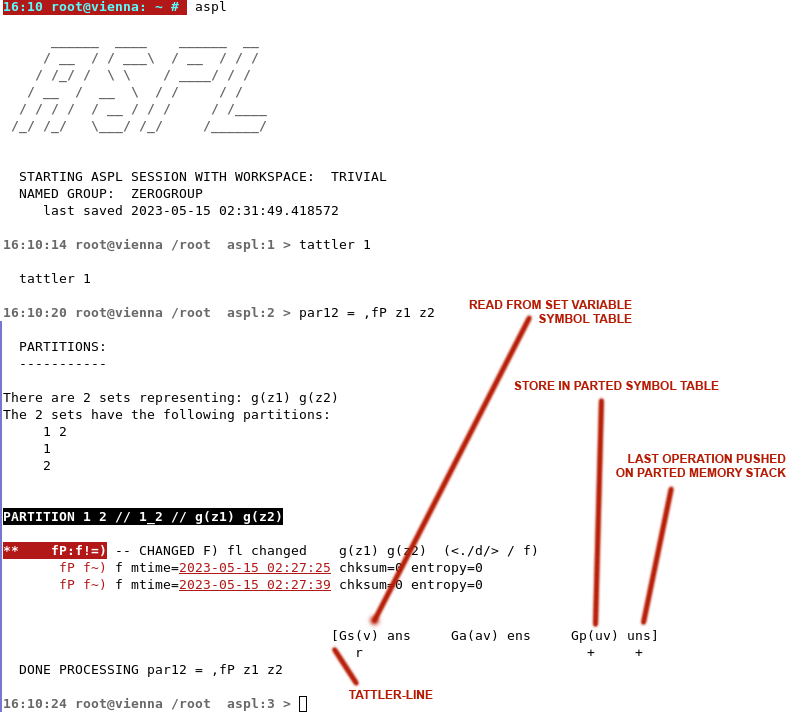
The tattler is an informational facility added to tell the user where the operation saves its variable identifiers or its anonymous groups. When the set operation is completed, the tattler-line is printed to show what symbol tables are being touched.
You can toggle the tattler with the command
aspl> tattler 1
aspl> tattler 0
More explaination about the tattler can be found in ASPL A Simplified View of ASPL User Manual.
■ SHAPES
ASPL variables have shapes. The shape command prints the shape of a variable.
To print the shape of a variable, you can type shape followed by the variable name. The command can be niladic, so issuing the command without following it by an identifier, will print the shape of the anonymous group found on the top of the answer stack.
For example, to print the shape of the set variable a1
aspl> shape a1
--------------------- ------------------------ --------------------
a12i = f& a1 a2 shape a12i H_H_H
A12i = f*& a1 a2 shape A12i H_H_AH
A12c = c& a1 a2 shape A12c H_H_AH
A12uc = cU a1 a2 shape A12uc H_H_AH
A12p = fP a1 a2 shape A12p H_H_H_H
A12pc = cP a1 a2 shape A12pc H_H_H_AH
gU a1 a2 shape (anon group on stack) H_H_H
pop au12 shape au12 H_H_H
ggdir(dir,/tmp/aa1) shape (anon group on stack) H_H_H
Since ASPL has multiple symbol tables, the name of an identifier can end up in two symbol tables and have different shapes. However, both identifiers happen to have the same name, but they are labeling two different groups.
Consider this example where the shape command reports two different shapes:
# aspl WS1
start ASPL loading sample workspace WS1
aspl> tattler 1
enable the tattler
aspl> v
print the set variable symbol table
aspl> av
print the binned symbol table
aspl> a1 *= a1
this assignment transforms the set variable into a binned variable by the same name
aspl> av
print the binned symbol table
aspl> shape a1
there are two identifiers by the same name with different shapes
Gs(a1) set variable
H_H_H
Ga(a1) augmented-set variable
H_H_AH
Once you use the ASPL interpreter for a while you will get acquainted with the notion of groups and their shapes. If you are new to ASPL, enable the tattler to see where variables and anonymous group are read from, or written to. Give your variable comprehensive names; for instance, in the example above, instead of a1 *= a1, we could have wrote A1 *= a1, using an uppercase for the binned variable. You are free to use any word identifier to name your variables.
May be ambiguous! Yet, the freedom of naming the variables with any word you want, will keep your mind refreshed. ASPL is not a structured programming language to write large programs, rather it is used to game with group operations at the intepreter prompt. For the most part you will be using ASPL basic set operators, sequence alignment operators, and the similarity operator.
■ INSIDE ASPL VARIABLES
Variables or anonymous objects hold essential and concise information about their originating sources and the time of their creation, along many other charactistics describing the structure of their data (of the groups they represent).
The v command displays the symbol table showing the set variables from the end user perspective. One can set the display mode to a higher number to show more canonical information when displaying the symbol table with the v command; however, it is possible to follow v with an option to view what is inside an ASPL variable.
The v command, when followed by an option, can reveal the internal of a set variable in more details, as shown below. Assuming a1 is a set variable:
view                    example                description
--------------------  -----------   --------------------------------------------
descriptor view       v d a1        variable descriptor
object view           v o a1        pathed-elements in what groups (fflp ffl > p)
gad object view       v gad a1      groups and their elements (pffl p > ffl)
scheduling bits view  v m a1        scheduling for the monitoring bits
The characteristics of an ASPL variable are described within the variable itself. The user does not need to know about the internal of a set variable; however, here is a summary of its characteristics; assuming a1 is a set variable:
- has a descriptor, viewable with v d a1
- data being structured per the shape of the variable, viewable with v o a1
- has GADg (created with GG-function), viewable with v gad a1
- has source that created the data, usually under Src column
- has dependencies, viewable with depend a1
- has Landing labels, usually under Lgn column
- has density and group statistic, viewable with density a1
- has cardinality, viewable with # a1
- has time when it was created, viewable with v (in display mode set to 5)
- has a shape, viewable with shape a1
- has monitoring bits, viewable with v m a1
■ VARIABLES ARE INTERROGATABLE
To interrogate a set variable just type ? followed by a space and the variable name. The following command interrogate the set variable a1
aspl> ? a1
■ DIFFERENTIAL GROUP VARIABLES
When a variable is interrogated and updated due to a change in the group that it represents, the variable is archived with an identifier (by the same name, and suffixed with @ followed by an incremental number). In this case, such set variable is turned into a differential group variable, and one can use the command @ to visually reveal the temporal instances saved inside the variable. A differential group variable can be used to study the temporal variability in the states of a system, or of a process. Consider displaying the temporal changes in the differential group variable X:
aspl> @ X
display the temporal instances held in X
aspl> gD, X X@1
show what has changed between X and its 1st instance
aspl> gD, X X@2
show what has changed between X and its 2nd instance
aspl> gD, X@1 X@2
show what has changed in X between its 1st and 2nd instance
aspl> gD, @X
show all the changes in the differential group variable X and its archived data
aspl> intermittentarc 0
set intermittence to 0
aspl> playop gD,`ks~ X
show what has changed between X and its prior instance
aspl> intermittentarc 1
set intermittence to 1
aspl> playop gD,`ks~ X
show changes throughout the history held in the differential group variable X
aspl> playchanges X
show changes in X along the rate of changes
aspl> playsim X
show the rate of dissimilarity in X
will also exclude the intersection between the datasets
There is a class of set operators, called differential group operators, that shows the temporal changes in differential group variables. These are: f@, d@, and g@.
perform setadic group operations on DIFFERENTIAL GROUP VARIABLES.
These variables play an important role in analysing changes in temporal groups
representing a system or a process.
■ envvar
The envvar is a valuable command that you can issue at the ASPL prompt. This command prints the environment variable that ASPL uses to locate its workspace folder, and provides many useful tips on commands called tilde-expansion-commands.
aspl> envvar
(pretty print ASPL_CLI_CONFIG)
CURRENTLY FROM WITHIN THE APPLICATION:
--------------------------------------
ASPL_CLI_CONFIG=/root/.aspl/WSP/WORKSPACES1,TRANSIENT,10,10,10,1000,30,2,0,0,0,0
                             |                  |      |  |  |   |   | | | | | +--> synchronize workspace container
                             |                  |      |  |  |   |   | | | | +----> make variables global
                             |                  |      |  |  |   |   | | | +------> persist data changes
                             |                  |      |  |  |   |   | | +--------> assign once
                             |                  |      |  |  |   |   | +----------> display mode
                             |                  |      |  |  |   |   +------------> wksp keep, keep lessons
                             |                  |      |  |  |   +----------------> history size
                             |                  |      |  |  +--------------------> unswer size
                             |                  |      |  +-----------------------> enswer size
                             |                  |      +--------------------------> answer size
                             |                  +---------------------------------> workspace name
                             +----------------------------------------------------> workspace directory


The above variable is the current ASPL_CLI_CONFIG variable that is being used by ASPL client.
Some values may have been changed. Compare them to the initial values as set in the shell.

AS BEING SET IN THE SHELL:
--------------------------
ASPL_CLI_CONFIG=/root/.aspl/WSP/WORKSPACES1,TRIVIAL,10,10,10,1000,30,2,0,0,0,0
                             |                 |     |  |  |   |   | | | | | +--> synchronize workspace container
                             |                 |     |  |  |   |   | | | | +----> make variables global
                             |                 |     |  |  |   |   | | | +------> persist data changes
                             |                 |     |  |  |   |   | | +--------> assign once
                             |                 |     |  |  |   |   | +----------> display mode
                             |                 |     |  |  |   |   +------------> wksp keep, keep lessons
                             |                 |     |  |  |   +----------------> history size
                             |                 |     |  |  +--------------------> unswer size
                             |                 |     |  +-----------------------> enswer size
                             |                 |     +--------------------------> answer size
                             |                 +--------------------------------> workspace name
                             +--------------------------------------------------> workspace directory


  tilde expansion  explanation                                    directory
  ---------------  ---------------------------------------------  -------------------------------------
  ~pwd             Parent process working directory               /opt/ASPLv1.00/shared
  ~home            ASPL home directory                            /opt/ASPLv1.00
  ~shared          ASPL shared directory                          /opt/ASPLv1.00/shared
  ~scripts         Scripts directory (beta v2)                    NO SUCH DIRECTORY: ~scripts
  ~etc             ASPL etc directory                             /opt/ASPLv1.00/etc
  ~tmp             ASPL tmp directory                             /root/.aspl/tmp
  ~bin             ASPL bin directory                             /opt/ASPLv1.00/bin
  ~wsp             ASPL Workspace directory                       /root/.aspl/WSP/WORKSPACES1
  ~elmddir         elmd's directory for the groupingclass         /opt/ASPLv1.00/BRIDGE/ASPL/Groupings/Elements/Attributes
  ~egc             ASPL Element Grouping Class Container directory (loadable)  /opt/ASPLv1.00/BRIDGE/ASPL/Groupings/Elements/ZEROGROUP
  ~gg              ASPL Grouping Functions directory (loadable)   /opt/ASPLv1.00/BRIDGE/ASPL/GGs
  ~ggs             ASPL Grouping Functions directory (loadable)   /opt/ASPLv1.00/BRIDGE/ASPL/GGs
  ~tie             Tied Attributes directory (loadable modules)   NO SUCH DIRECTORY: ~tie
  ~feeder          Feeder directory (of Udev) for Tied Attributes directory (loadable module)  NO SUCH DIRECTORY: ~feeder
  ~geosubs         GEO contextual set operation modules           NO SUCH DIRECTORY: ~geosubs

 ** You can navigate to any of these directories within ASPL, just type its tilde-expansion at the ASPL prompt followed by ENTER.
 ** To list the files in any of these directories within ASPL, just precede its tilde-expansion with ll,lls,llt,lltr,lld, or llsdr.
 **     the ll and lls are the same, llt list files by time, lltr list files by reverse time, lld list w.o. extending directories
 ** To change directory to the directory known to a tilde-expansion just type chdir followed by the tilde-expansion.
 **     to change directory to ~ggs:  chdir  ~ggs
 **             also by just typing:  ~ggs
 **     go back to parent directory: chdir  ~pwd
 **     go back to parent directory: ~pwd
 ** To print the directory tree known to a tilde-expansion just type tree or treed followed by the tilde-expansion.
 **     for example display the tree (including files)  of GGs functions: tree  ~ggs
 **     for example display the tree (only directories) of GGs functions: treed ~ggs
 ** To print the URI of the ELMD file for currently loaded groupingclass: ~elmd
 ** To edit the ks-vector defined in the ELMD definition file you will type: ~ks
 ** If you have attributes defined as lambda code, you can edit the Anoncode module by typing: ~anoncode
 ** If you have attributes tied functions, you can edit the Udev module by typing: ~udev
 ** NOTE: the ~tie directory is only available if the group attributes are tied to real time UNIX devices.
 ** NOTE: the ~feeder directory is only available if the group attributes are tied to real time UNIX devices.
 ** NOTE: the ~geosubs directory is only available with GEOmetric element grouping class.
  tilde expansion  explanation                                    file
  ---------------  ---------------------------------------------  -------------------------------------
  ~colorsfile      Colors configuration file                      /opt/ASPLv1.00/.aspl/etc/colors.conf
  ~emailsfile      Email groups file                              /root/.aspl/etc/emailspool
  ~ddmfile         DDM configuration file                         /opt/ASPLv1.00/etc/ddm.conf
  ~shallowed       Shallowed set operation processors module      /opt/ASPLv1.00/.aspl/etc/ShallowMatches.pm
  ~asplconf        ASPL configuration file (sessions timeout)     /opt/ASPLv1.00/etc/aspl.conf
 ** To edit any of these files within ASPL you can specify its tilde-expansion at the ASPL prompt, or just edit it in another terminal.

THE FOLLOWING ARE THE EXPORTED ASPL ENVIRONMENT VARIABLES:
----------------------------------------------------------

ASPL1_00_BRIDGE=/opt/ASPLv1.00/BRIDGE
ASPL1_00_HOME=/opt/ASPLv1.00
ASPL1_00_PROMPT='prompt:{tm} {u}@{h} {cwd}  aspl:{no} > ;promptcolor:bold_black;logocolor:bold_black;loadcolors:colors3'
ASPL1_00_TMP=/root/.aspl/tmp
ASPL_CLI_CONFIG=/root/.aspl/WSP/WORKSPACES1,TRIVIAL,10,10,10,1000,30,2,0,0,0,0
BASH_EXECUTION_STRING='echo;set | grep ASPL'
PATH=/work/bin:vs/QM/bin:/vs/PRSS/bin:/tools:/tools/nailsutil:/usr/lib64/qt-3.3/bin:/usr/lib64/ccache:/usr/local/sbin:/usr/local/bin:/sbin:/bin:/usr/sbin:/usr/bin:/opt/ASPLv1.00/bin:/opt/ASPLv1.00/shared:/root/.aspl/scripts:/opt/ASPLv1.00/BRIDGE/bin:/root/bin
PWD=/opt/ASPLv1.00/shared


EDITOR:  "vi "
      YOU CAN CHANGE THE EDITOR. FOR EXAMPLE,
        TO USE "vim" EDITOR:  export ASPL_EDITOR=vim
        TO USE "joe" EDITOR:  export ASPL_EDITOR=joe
        TO USE "jpico" EDITOR:  export ASPL_EDITOR=jpico
        TO USE "emacs" EDITOR:  export ASPL_EDITOR=emacs
      YOU NEED TO EXIST AND EXPORT ASPL_EDITOR.
      ASPL DEFAULT EDITOR IS "vi"

      THE EDITOR IS DISABLED IF PAGING IS ON.


PAGER:
  The current pager is "more"
  The pager is disable by default, but you can toggle it with: paging 1
  and turn it off with: paging 0

HISTORY:
  The history of any ASPL workspace can be recalled with the "hs" command.
  You can grep the history or the currently loaded workspace, for example:  hs grep somestring

  The current history of a session can be recalled with the "h" command.
  The current history of a session is not being saved unless the workspace is saved with the "save" or "bye" command.

  At the ASPL prompt, you can display the history of all workspaces can be displayed by typing "hsall", and
  you can grep the history of all workspaces for somestring by typing "hsall grep somestring"
  aspl> hsall

  On the UNIX shell prompt you can also display the history by using any of the following commands:
  # asplcmd hsall
  # aspl -verb hsall
  # asplcmd hsall | grep somestring
  # asplmgrp -lisths `asplcmd ~wsp`

LIST ALL GROUPINGCLASSES (ELGROCO) DEFINED IN THE egC-Container:
  # metagrouping -listnamed

QUICKLY LOOKING INTO A WORKSPACE:
  On the UNIX shell prompt you can type the description of a workspace RANDONEBITMIX
  # asplcmd "load RANDONEBITMIX; description"
  you can type the history saved of a workspace RANDONEBITMIX
  # asplcmd "load RANDONEBITMIX; hs"

WORKING WITH WORKSPACE:
  To print the location of the workspace directory:
  # asplcmd ~wsp
  To quickly list the workspace directory used by ASPL for your current configuration, type at the UNIX prompt:
  # asplcmd wls
  # asplcmd wlls
  # asplcmd "wls sort by name"
  # asplcmd "wls sort by grouping"
  Find the named workspaces (or namedspaces) whose groupingclass is ZEROGROUP:
  # asplcmd wls | grep ZEROGROUP
  Since a saved namedspace has its metadata are saved in MGRP files, then you can list these with:
  # asplmgrp -list `asplcmd ~wsp`

  To print the currently loaded namedspace used by your ASPL session, this will also show the uptime:
  aspl> wid
  Typing the following command at the shell prompt will display the workspace then exit ASPL:
  # asplcmd "load RANDONEBITMIX; wid"

  Delete a workspace using the wrm command
  aspl> wrm WS1JUNK
  or at the UNIX prompt by calling asplcmd
  # asplcmd "wrm WS1JUNK"
  or at the UNIX prompt by starting ASPL and passing a -verb
  # aspl WS1JUNK -verb wrm

  You can always duplicate a workspace using the save command
  here we start ASPL with WS1 workspace
  # aspl WS1
  we issue some command setting a123 set variable
  aspl> a123 = gU a1 a2 a3
  we save the current workspace to WS1JUNK
  aspl> save WS1JUNK
  saving the workspace does not mean ASPL will load it, wid will show that WS1 is still being used
  aspl> wid
  we quit (without saving WS1 workspace) and restart ASPL with WS1JUNK
  aspl> quit
  # aspl WS1JUNK

TRANSIENT:
  The special namedspace TRANSIENT is a temporary memory space used by ASPL for its default command:

WHICH:
  ASPL has a colorful pretty print "which" command.
    aspl> whichxX+iR *aspl*group*
  It is also available at the UNIX shell prompt as the "whichma" command:
    # whichma xX+iR "*aspl*group*"
  and even build a tree and walk its directories:
    # ALTERNATE_EXPANDEDPATH=$(pathedtrees -dir /opt/ASPLv1.00/BRIDGE/ASPL) whichma xX+iR "aspl*/Feeder*pm"
  For more about ASPL "which" command or its shell equivalent whichma-call-it "whichma" command, you can
  simply type "whichma" at the shell prompt:
  # whichma

VERBOSE STARTUP:
  Start ASPL with -verbose option to display information at startup.
  If a workspace has been already saved, then you can quickly start ASPL by loading it, eg. to load TRIVIAL:
  # aspl TRIVIAL -verbose
  or explicitly specify the namedspace and its namedGClass
  # aspl -wsname TRIVIAL -groupingclass ZEROGROUP -verbose

SCRIPT:
  Always have the -script as the first option, followed by the scriptname and its arguments:
  # aspl -script /opt/ASPLv1.00/shared/dircompare.aspl  /tmp/aa3 /tmp/aa6
  the following command executes the ASPL script with trace
  # aspl -script /opt/ASPLv1.00/shared/dircompare.aspl  /tmp/aa3 /tmp/aa6 -SCT
  the following command executes the ASPL script with trace and show ASPL startup
  # aspl -script /opt/ASPLv1.00/shared/dircompare.aspl  /tmp/aa3 /tmp/aa6 -SCT -verbose
  below, -verbose will be ignored since the always -script should be the first argument
  # aspl -verbose -script /opt/ASPLv1.00/shared/dircompare.aspl  /tmp/aa3 /tmp/aa6 -SCT

DEBUG STARTUP:
  ASPL_DBG_ENTRY=4 aspl -showonly
  ASPL_DBG_ENTRY=1 aspl
  ASPL_DBG_ENTRY=3 aspl -wsname TRIVIAL -verbose

PEEK INSIDE ..
  aspl> findegc egrouping_class
  aspl> findgg  egroupingclass
  aspl> ffinder ~gg/ggbit*.pm egroupingclass
  aspl> ffinder ~gg/* TRIVIAL
  aspl> grepper ~gg/* TRIVIAL
  aspl> grepper ~gg/ggbit*.pm egroupingclass
  aspl> ffinder ~egc/* TRIVIAL
  aspl> ffinder ~elmd egrouping_class
  aspl> grepper ~elmd egrouping_class
  aspl> whichexp /home/bassem/.aspl:/opt/ASPLv1.00/BRIDGE  GG*BAY*feed*
  # whichexp `asplcmd ~home`/bin "*aspl*

CURRENT LOADED WORKSPACE:
  The current workspace repository is "/root/.aspl/WSP/WORKSPACES1"
  The currently loaded namedspace is "TRANSIENT"
  This namespace has namedGClass "ZEROGROUP"

The ASPL intepreter is a pure PERL implementation that is build on top of the UNIX system
and it uses the PERL virtual machine in processing its statements.

Thank you for using ASPL.
COPYRIGHT 2025 by Bassem Jamaleddine