ASPL User Guide v 1.00
© 2025 Bassem W. Jamaleddine
1-1
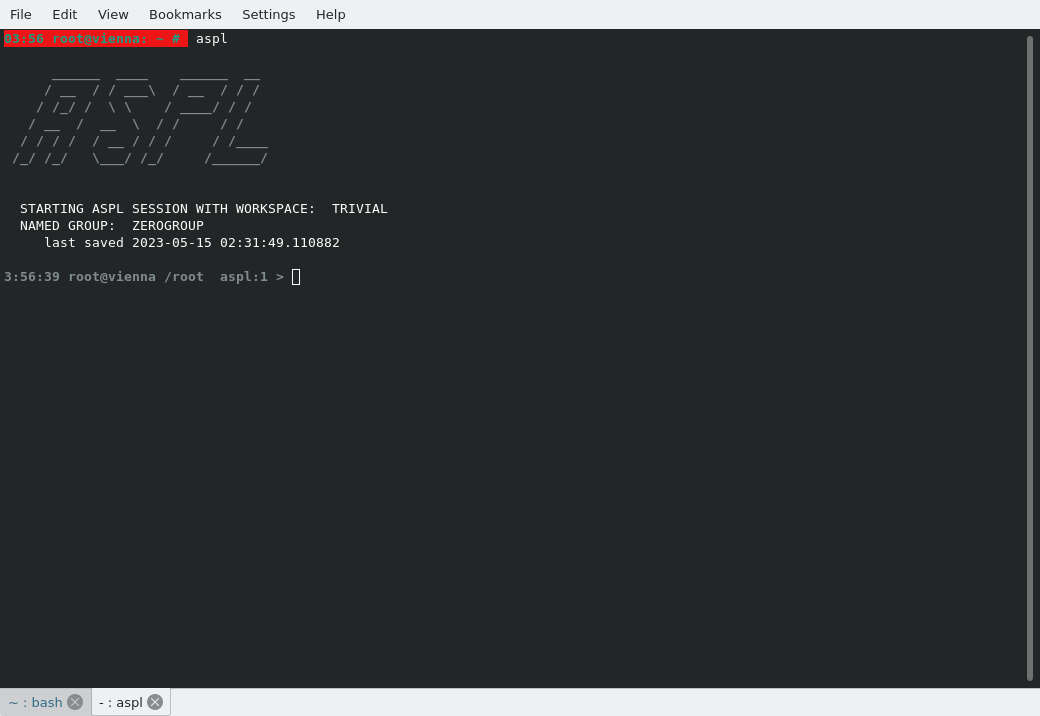
Start ASPL loading the default workspace TRIVIAL shown in figure 1.1.1.
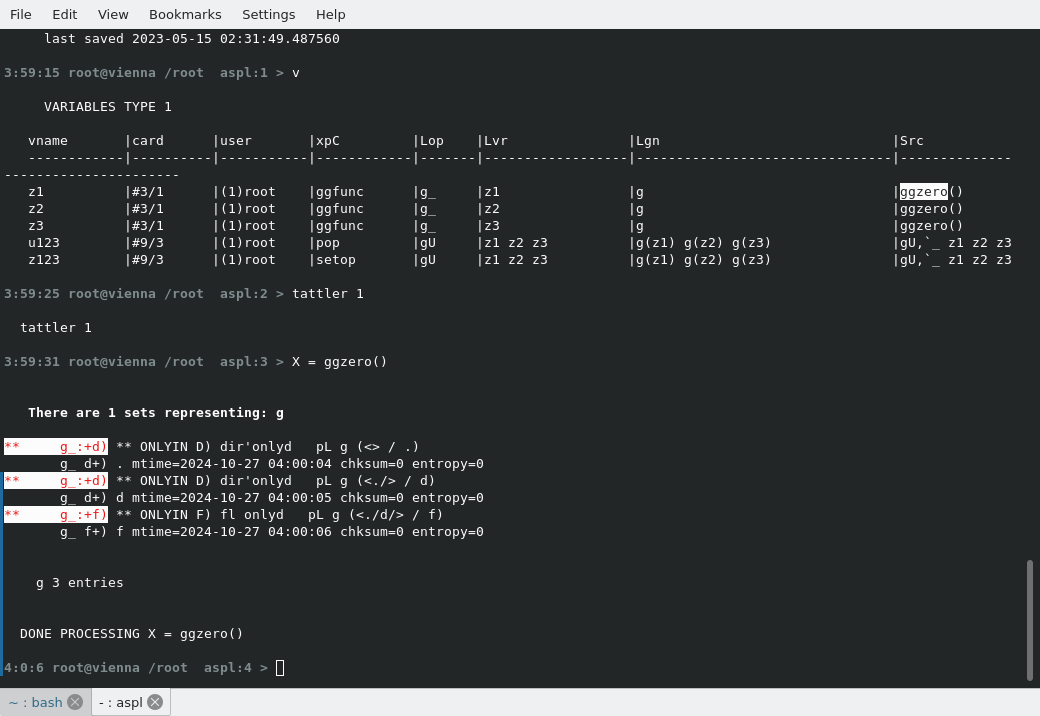
In figure 1.1.2 we display the symbol table by typing v, toggle the tattler with tattler 1, assign X to global grouping function ggzero().
Looking at Figure 1.1.2, the symbol table output shows eight columns:
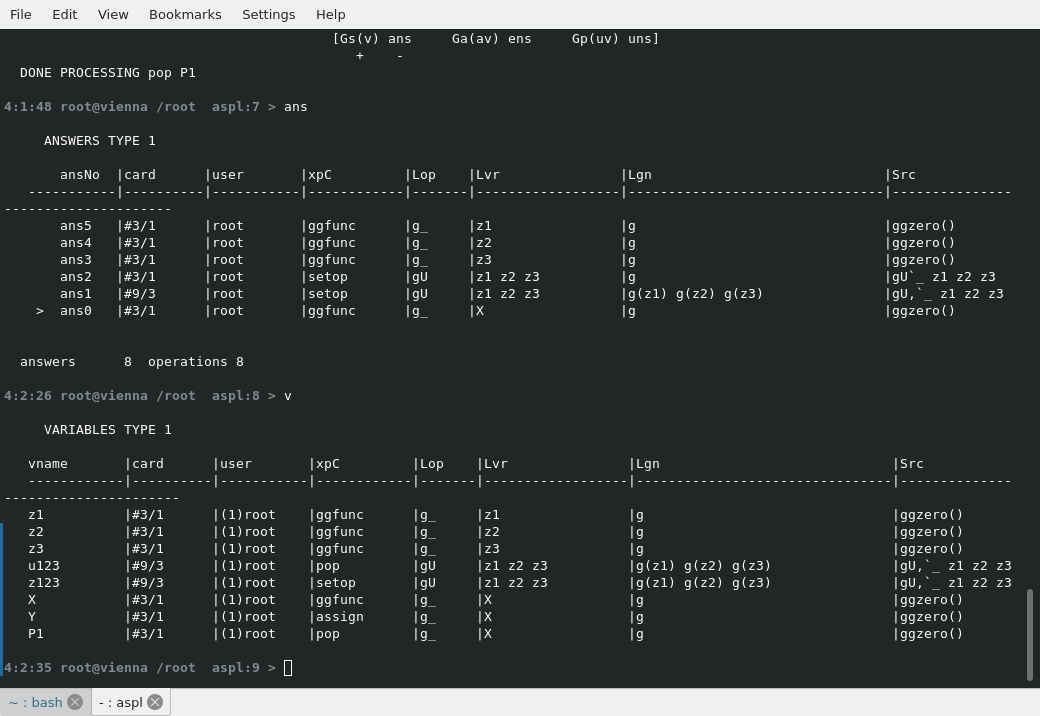
Assign set variable Y to X, print the answer stack (notice last operation was pushed on the stack). Pop the stack in P1.
Notice also that the tattler-dash-line shows that Gs has 'r+' (that is read from symbol table then add to symbol table) and ans has '+' (adding last operation to answer stack).

Print the answer stack (notice that it was popped), and print the symbol table (notice the P1 set variable).
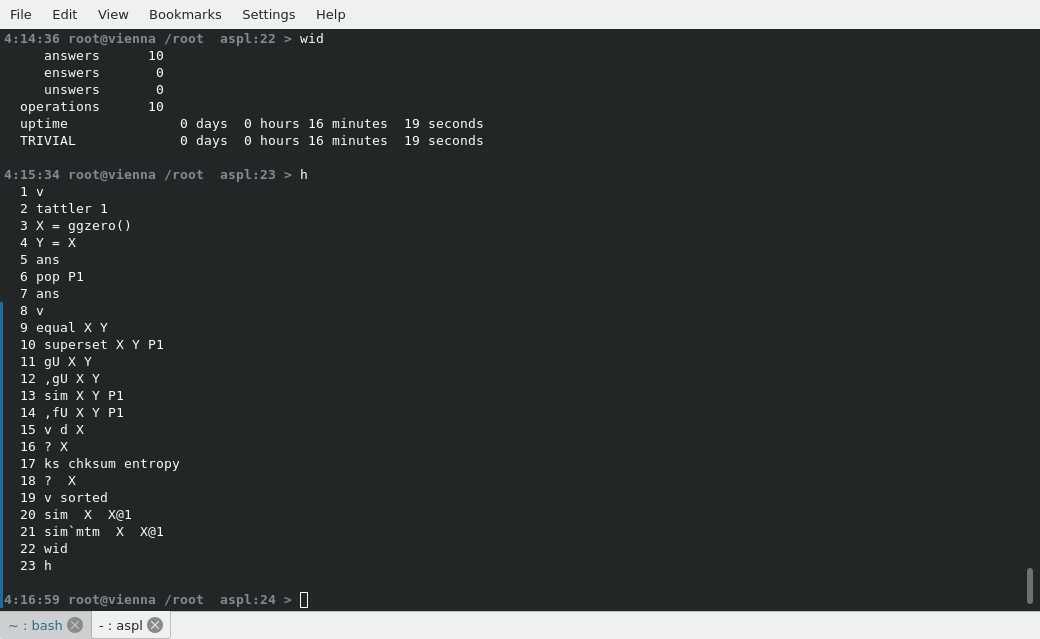
Check set equality between X and Y, and check supersetness following this order X Y P1

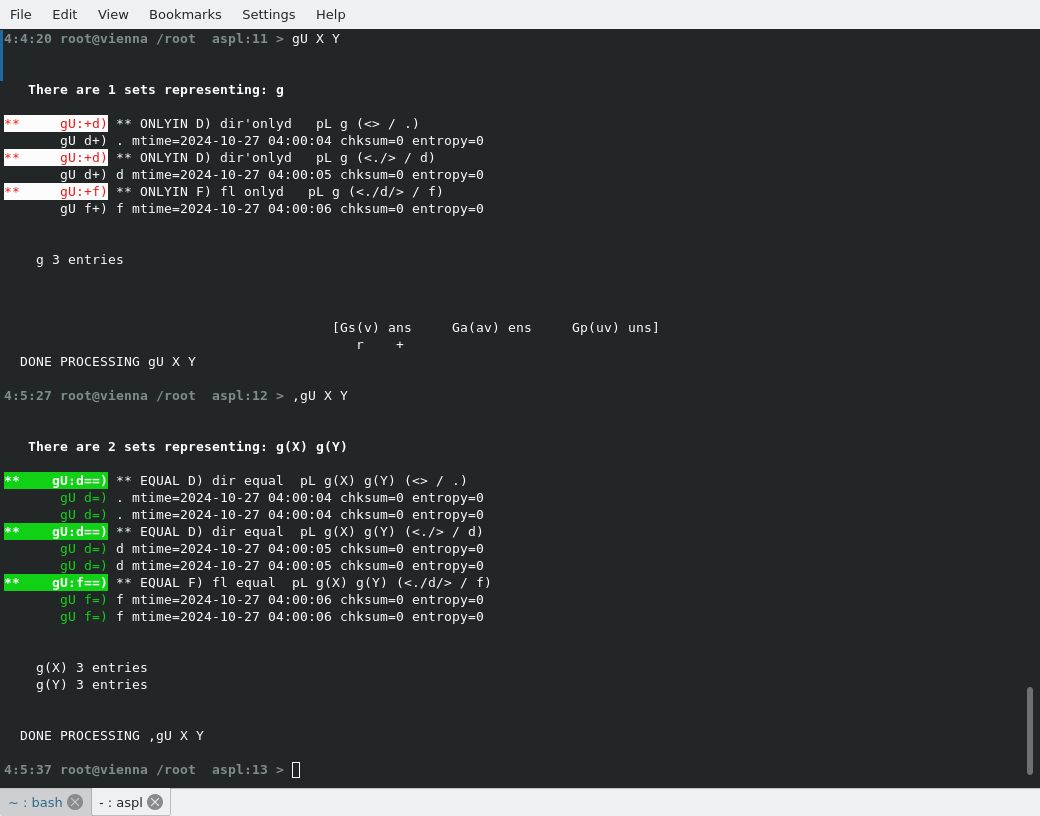
display group UNION gU between X and Y, labinate the group UNION ,gU and display it. Note that placing the comma before or after a set operator causes ASPL to labinate or to relabel the groups before doing the operation (this is useful when comparing set variables whose group labels are similar, and ASPL will relabel the group by appending to the labels the variable name or any other symbol to distinguish the groups in the operation process).
display the similarity between X and Y, then display the labinated elements UNION ,fU between X Y P1

display the descriptor of the variable X
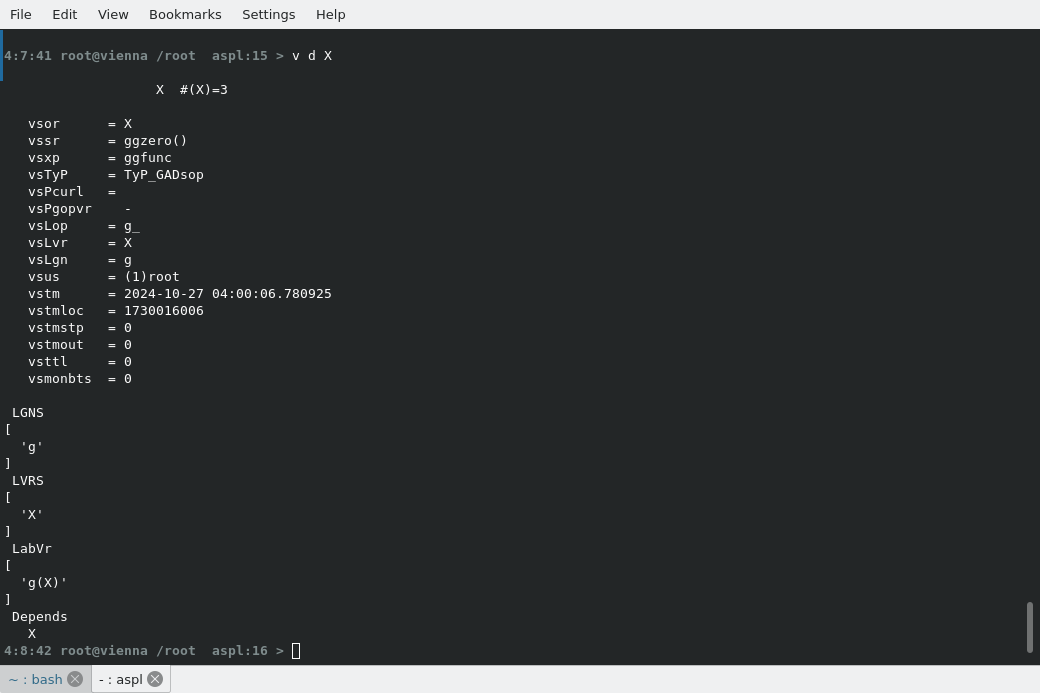
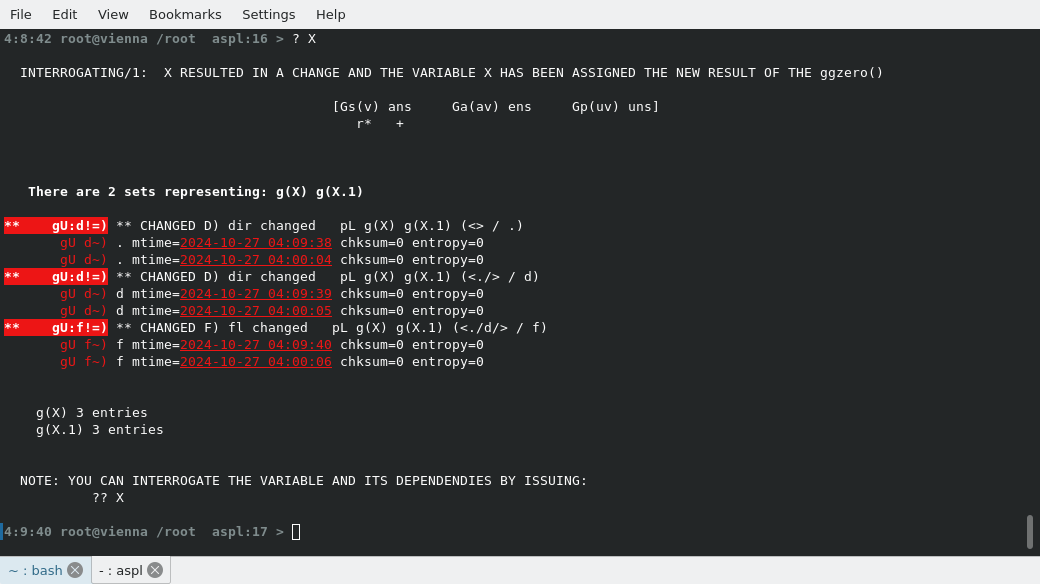
interrogate the set variable X using the command ? X, this variable will be updated since at least one attribute mtime has changed. Interrogating a set variable causes ASPL to reprocess the source that created the variable, should any change in the resulting data be detected then ASPL will archive the variable then reassign the variable with the new data.
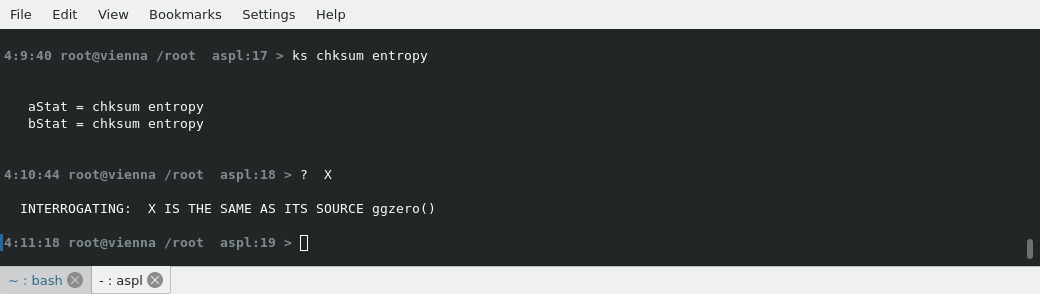
Set the ks-vector to chksum and entropy, interrogate the X variable (notice there is no change, since the mtime is canceled from the ks-vector)
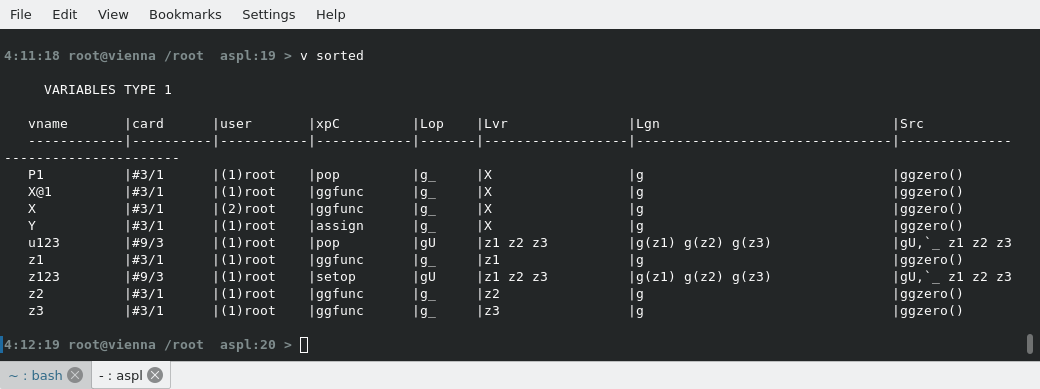
print the sorted symbol table showing variables along their archive, notice X has X@1 from previous interrogation, where X@1 is previous archived data from X
Show the similarity between X and X@1 (they are similar), tick the similarity with `mtm hence the command sim`mtm to consider the similarity including the mtime (they are dissimilar as shown below since the mtime attribute do not match)
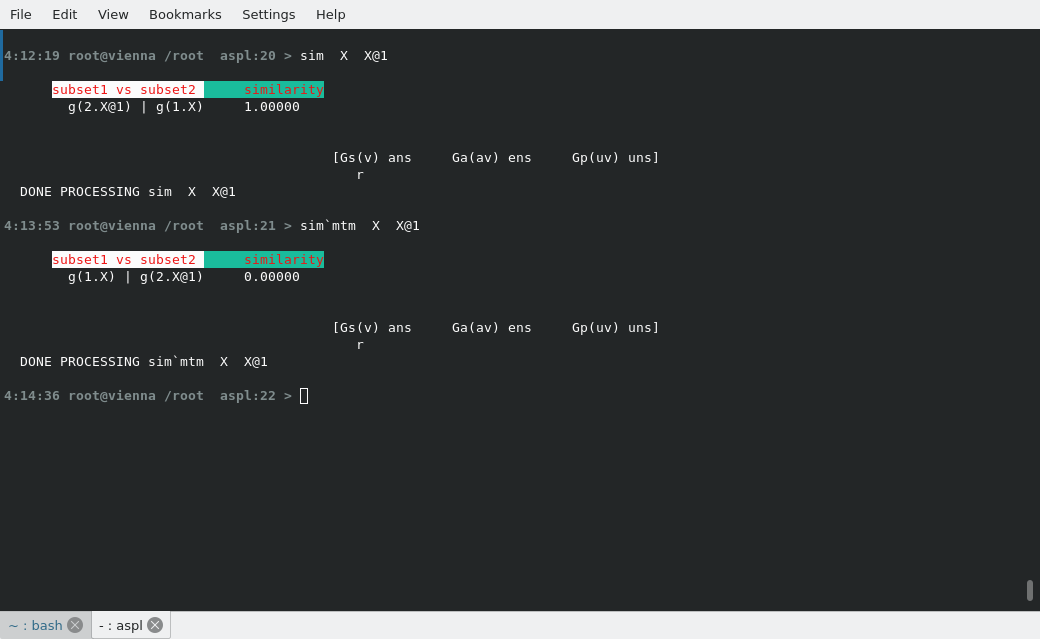
display the current workspace name and the uptime of ASPL by typing wid, then display the history of commands issue by typing h
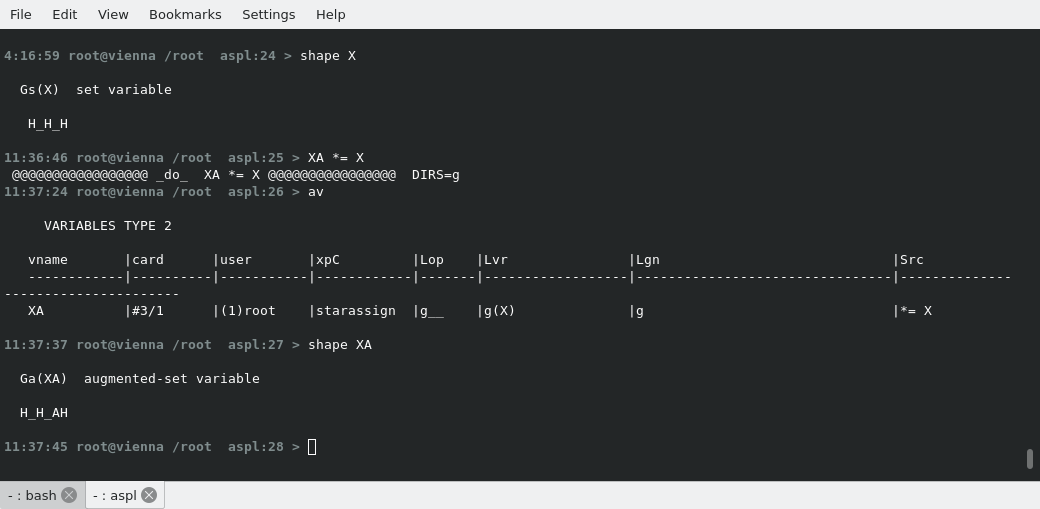
ASPL variables have shapes. The command shape displays the shape of the variable. In the following figure we display the shape of X, we then assign XA *= X (a transform assignment that create an augmented variable whose shape is H_H_AH) as shown below.
Finally we quit ASPL without saving the workspace by typing quit on ASPL prompt. If you want to save the workspace to the currently loaded workspace name, you could have typed save before quitting. If you want to save the workspace to a new workspace named JUNKTEST, you could have typed save JUNKTEXT and that will create a new workspace named JUNKTEST. If you typed bye instead of quit that would have caused ASPL to save the current workspace TRIVIAL then quit the interpreter. Obviously by typing quit we just leave the interpreter without saving anything to the loaded workspace TRIVIAL.

Now you can repeat the steps above and see for yourself that the commands will result with the same results since we quitted without saving or affecting the TRIVIAL workspace.
■ ASPL Symbolic Operators
The ASPL interpreter uses the ASCII printable characters which are the 95 characters in the ASCII standard that are able to be displayed on your terminal. They include letters, numbers, symbols, and punctuation marks, and are represented by codes 32 to 126. These characters can be typed directly on your keyboard to create written text and other visual content on your display. All ASPL symbolic operators can be typed directly by using any basic keyboard. No special symbol is used in any ASPL commands.