ASPL Installation Guide v 1.00
© 2025 Bassem W. Jamaleddine
The licensed softwares on TCND.COM are digitally signed distributions. To download the distribution file of a software, you need to purchase an asset key that binds to the signed distribution. As an example, this chapter shows step-by-step how to purchase an ASPL Enterprise distribution. The same method can be applied to purchase any licensed software from TCND.COM.
■ How to Purchase Licenses for ASPL Enterprise
To download the distribution of a licensed software you need to purchase an asset key. In the following, we show how to purchase a license for the ASPL Enterprise software.
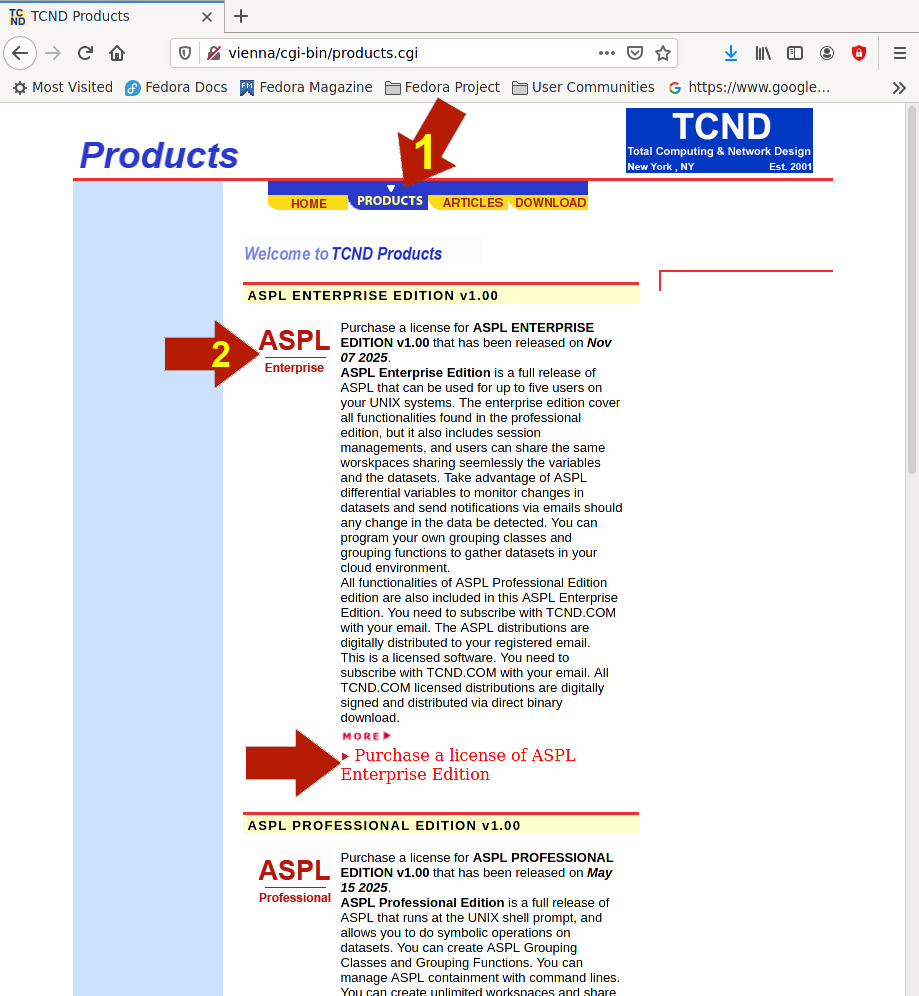
Select the software you want to purchase a license for: click on PRODUCTS in the top navigation bar (this is shown in the figure below marked with the red arrow labeled 1). Next, click on the software logo (shown with the red arrow labeled 2).
You can also click on "Purchase a License of ASPL Enterprise Edition". Here we want to purchase licenses for ASPL Enterprise software.
Now you are in the licensing screen shown in the following figure.
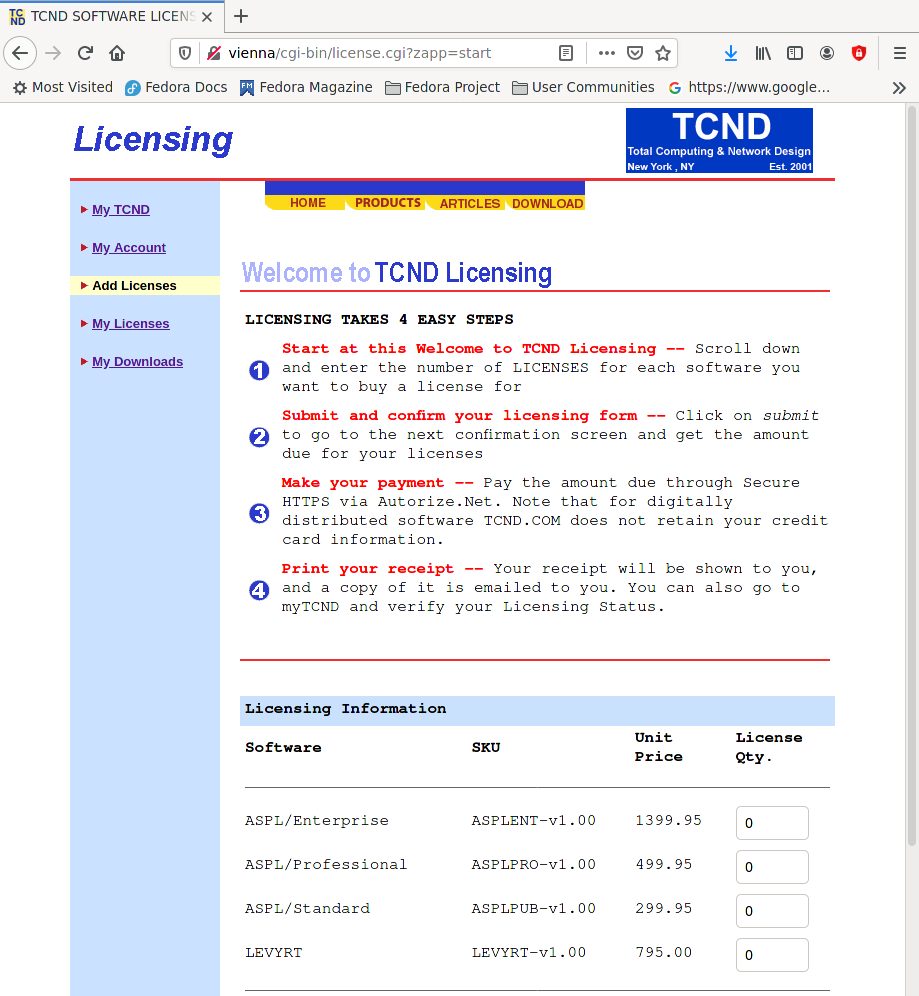
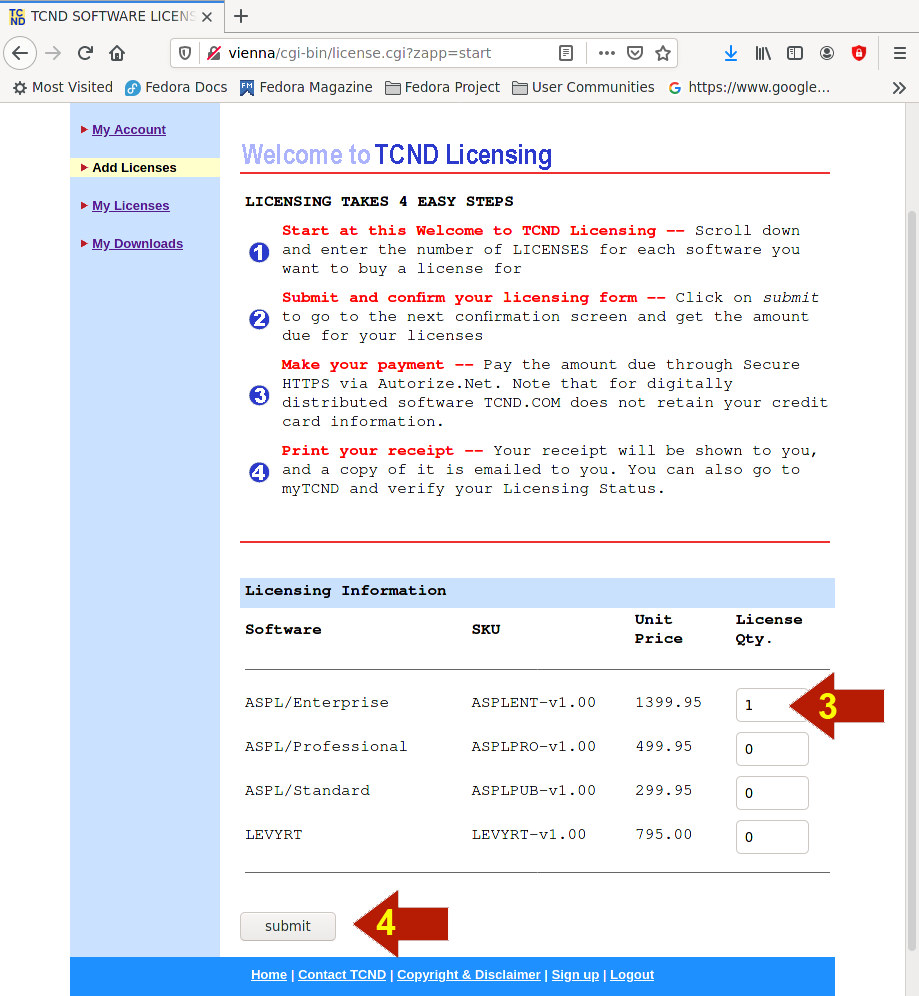
Enter the number of licenses you want to purchase. Here we entered one license for the ASPL Enterprise (show with the red arrow labeled 3). Then click on SUBMIT (shown with the red arrow labeled 4).
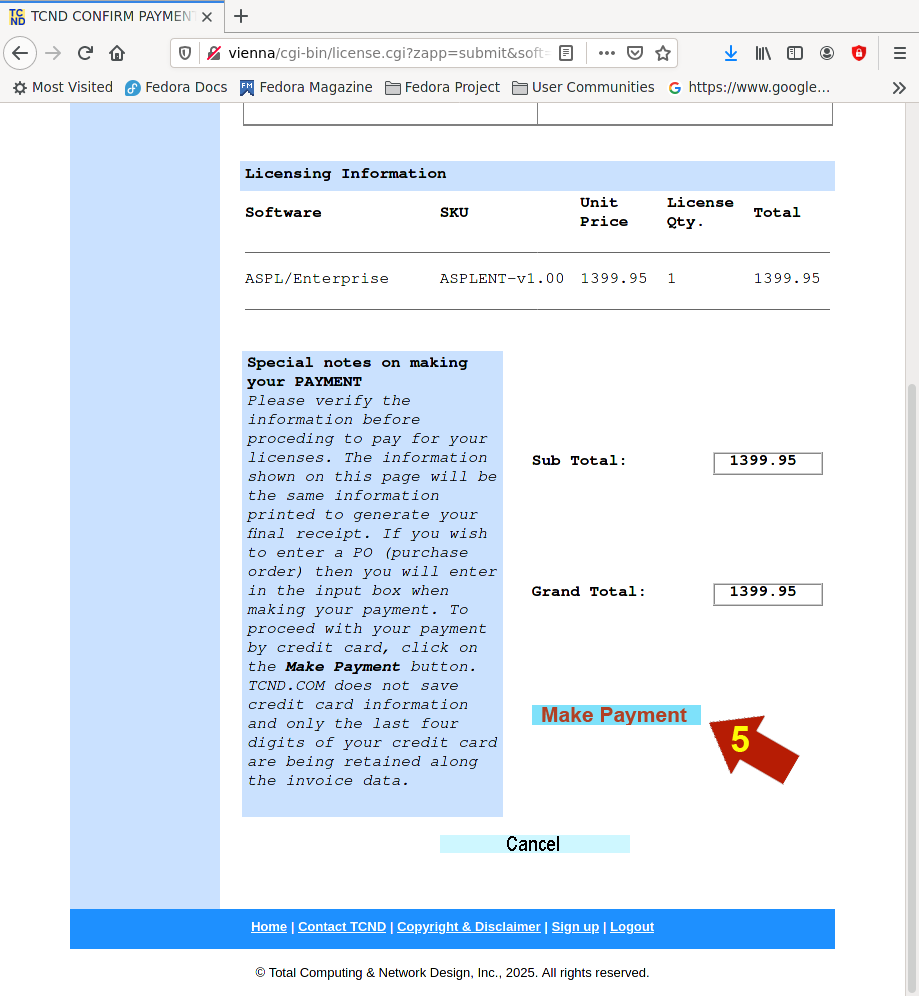
Now you are in the payment verificaton screen shown in the following figure. To make the payment for the amount shown, click on "Make Payment" (shown with the red arrow labeled 5). Click on Make Payment.
Now you are in the payment screen, where you will enter your credit card, as shown in the following figure.
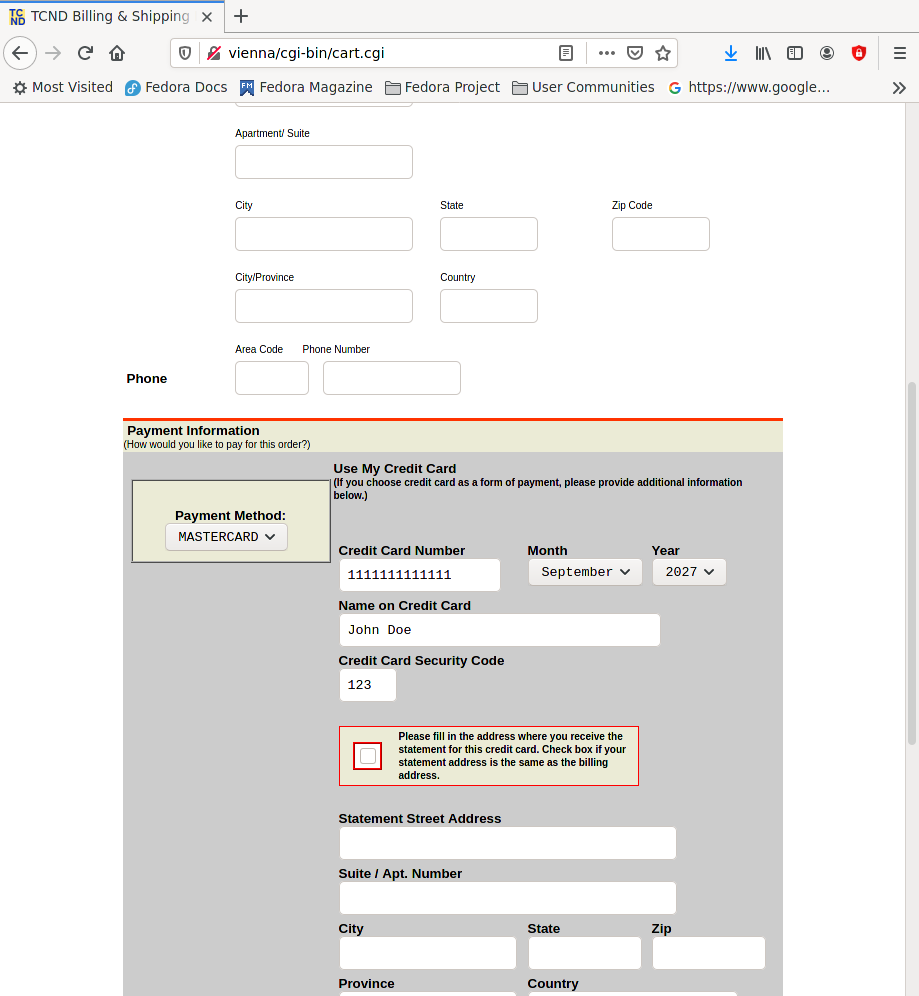
Scroll down, where you will see the box labeled AMOUNT TO BE CHARGED, then click on SUBMIT (shown in the following figure with red arrow labeled 6).
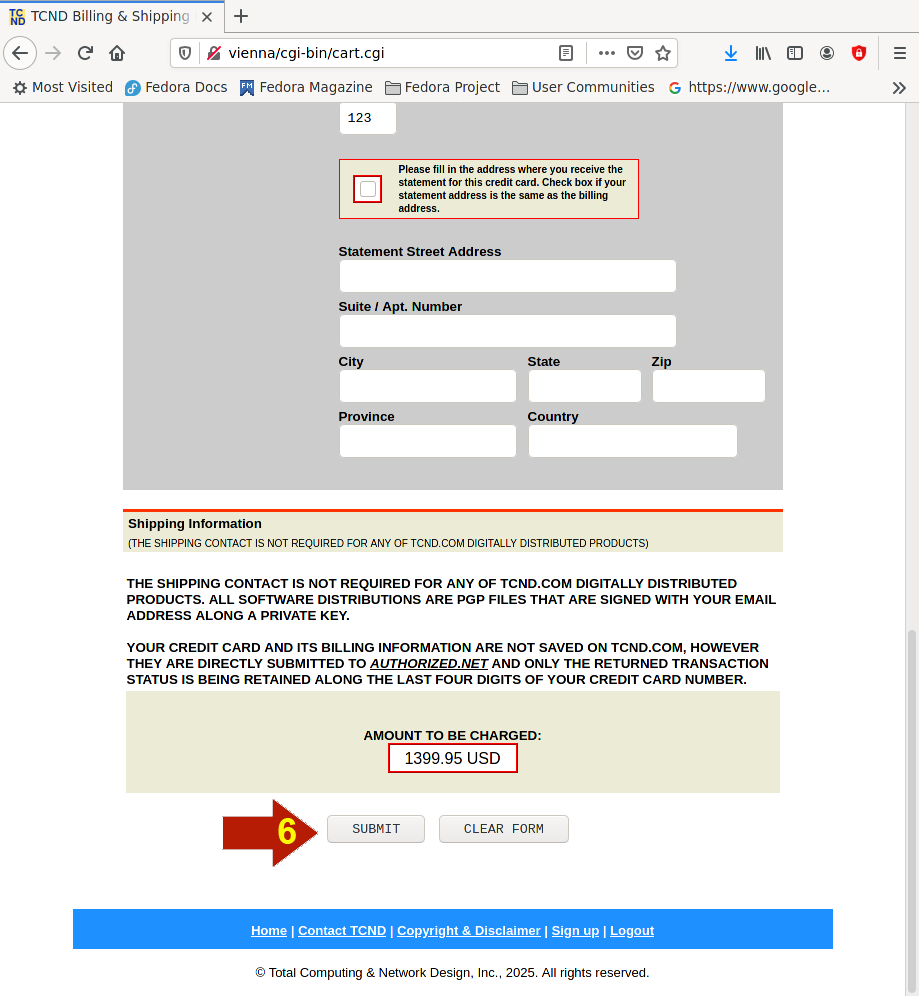
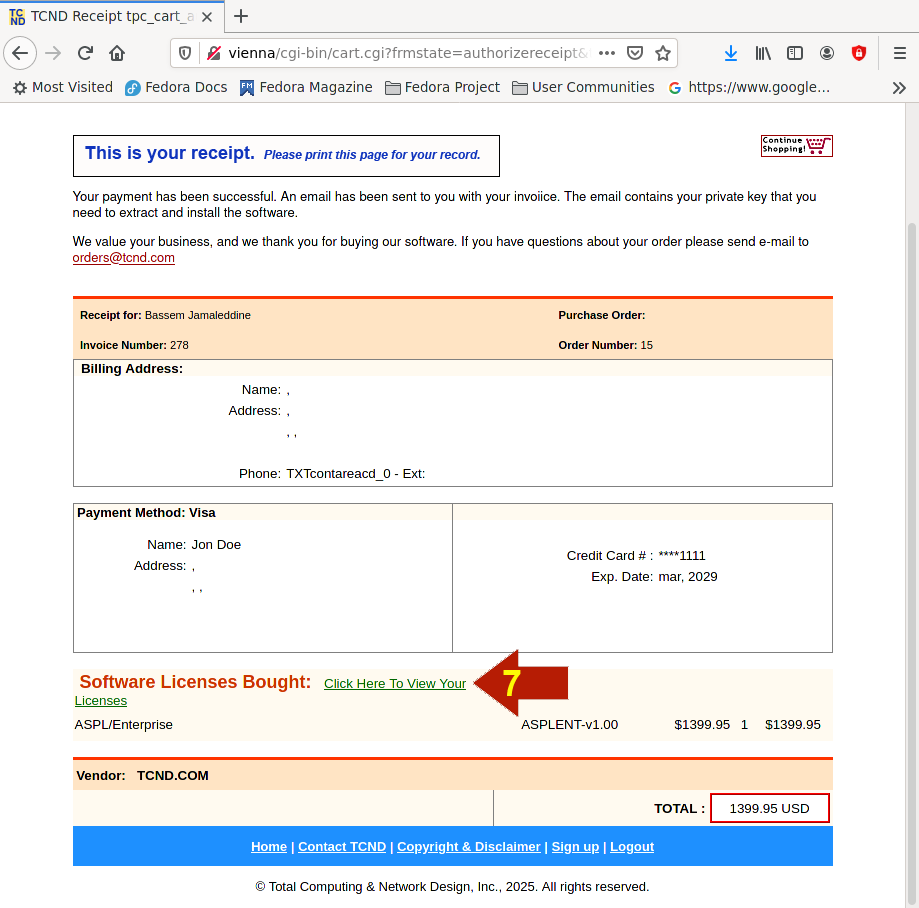
Your payment will be securely processed by Authorize.net. If payment is valid, then you will be presented with the following receipt screen that you can capture for your record.
From the receipt screen, you can click on Click Here to View Your Licenses (shown with the red arrow labeled 7), this will take you to your licensing profile.
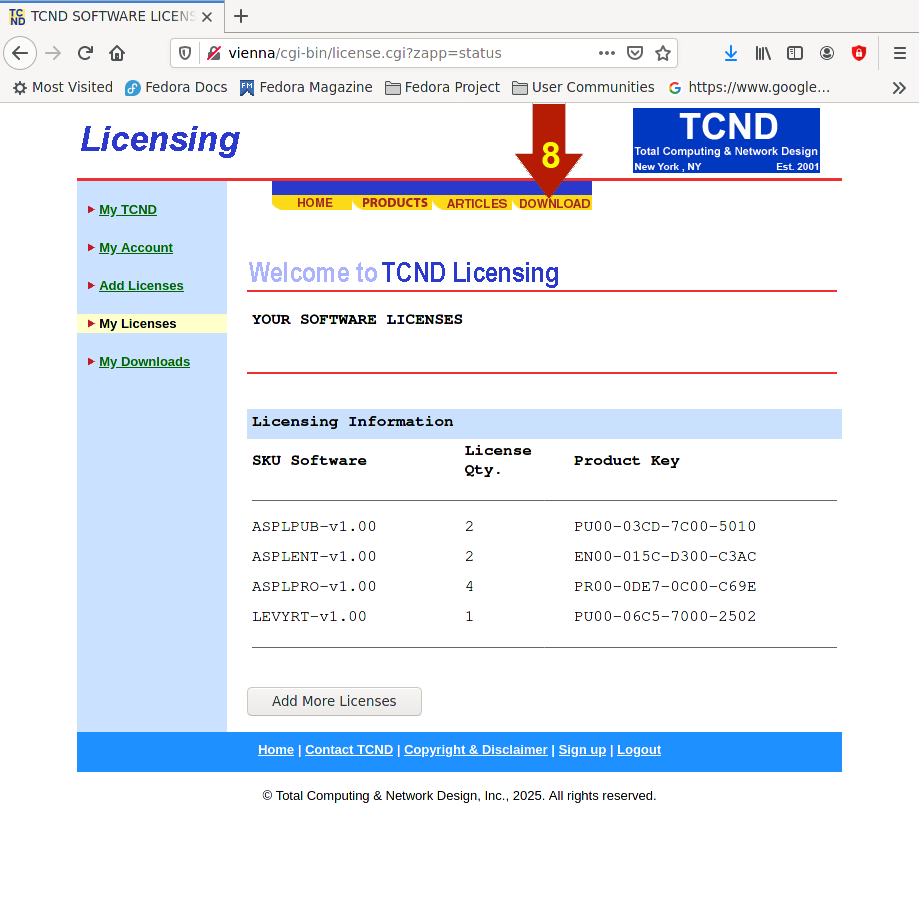
Now you are in the licensing profile (also called My Licenses), shown in the following figure. This will show the licenses you purchased from TCND.COM.
At any time, you can get to My Licenses, by clicking on DOWNLOAD in the top navigation, then clicking on "My Licenses" in the left navigation margin.
Let's download the software we just bought a license for. Click on DOWNLOAD in the top navigation bar (as shown in the figure below with red arrow labeled 8).
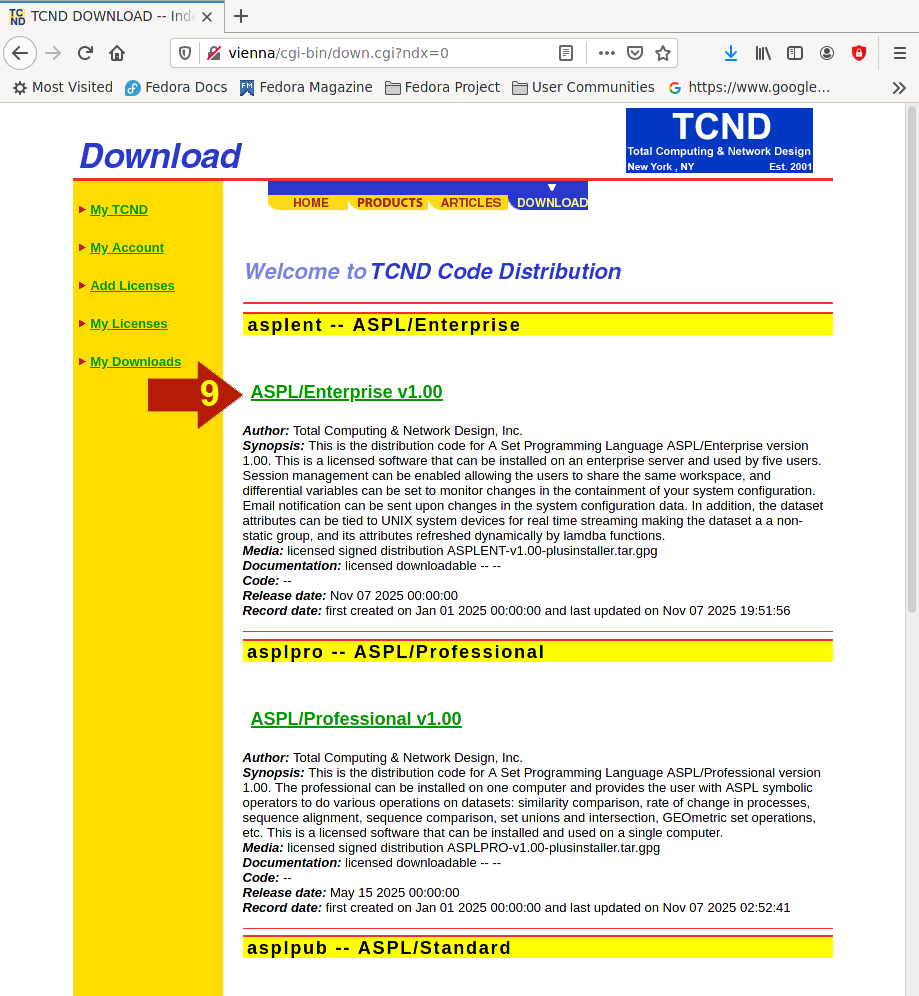
Now you can see all the sofwares that you can download. Scroll down and locate the software you just purchased (this is shown with the red arrow labeled 9). Click on it.
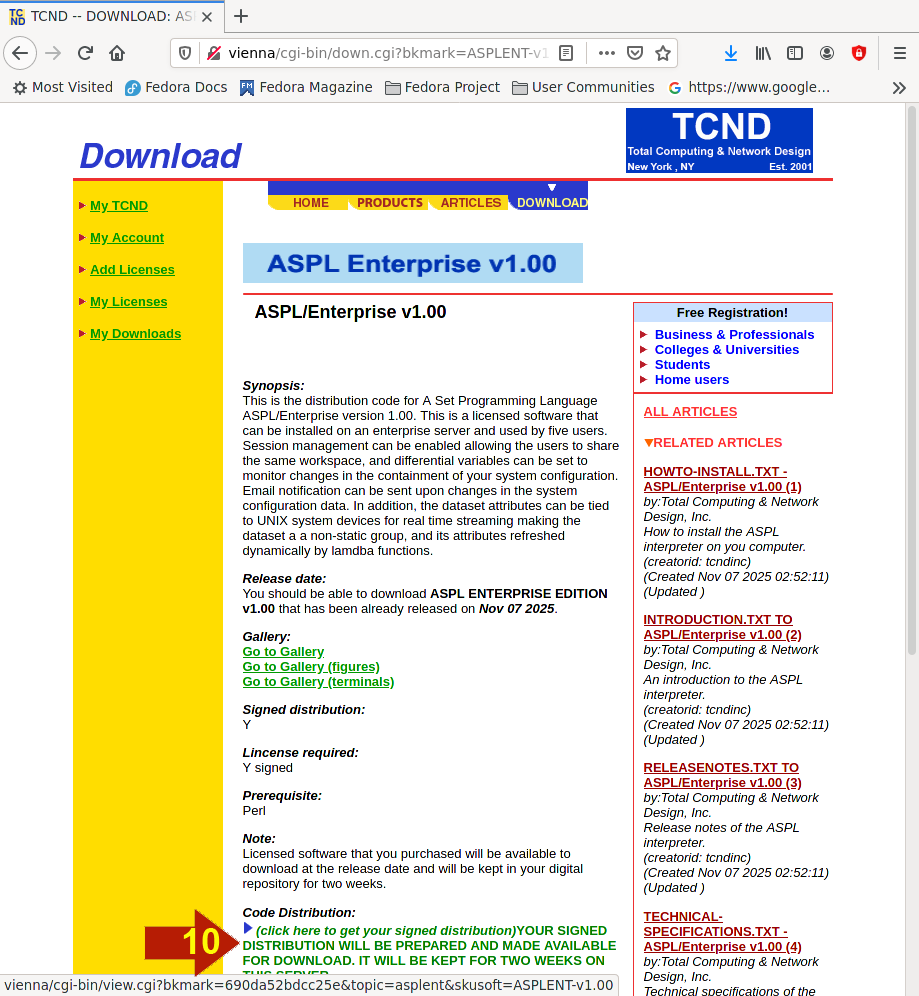
Now you will be in the download screen of the specified software (show in the following figure). If this is the first time you purchased a license, then you will be presented with the green message (shown in the following figure with the red arrow labeled 10). Once you click on it, your license will be prepared.
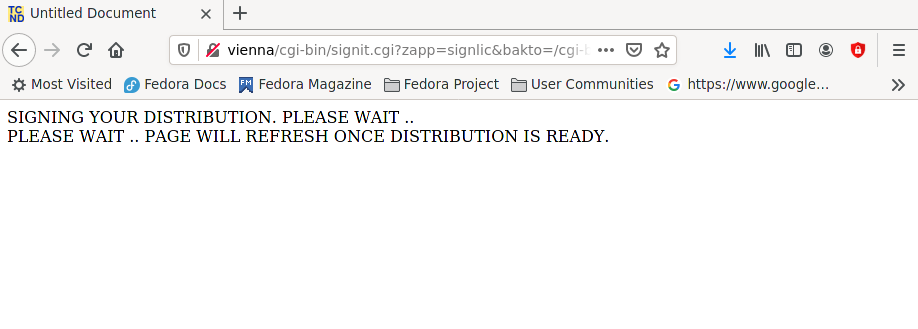
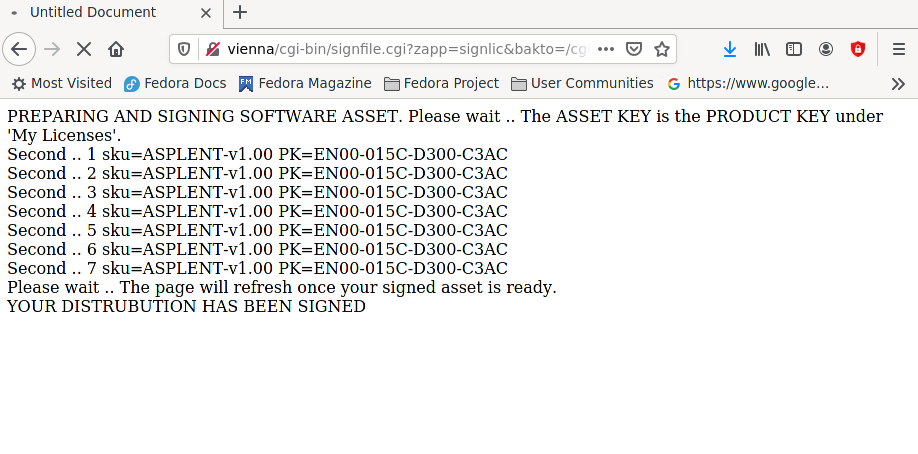
Wait while your licensed software is being prepared. While preparing your licensed distribution, your browser will show the following.
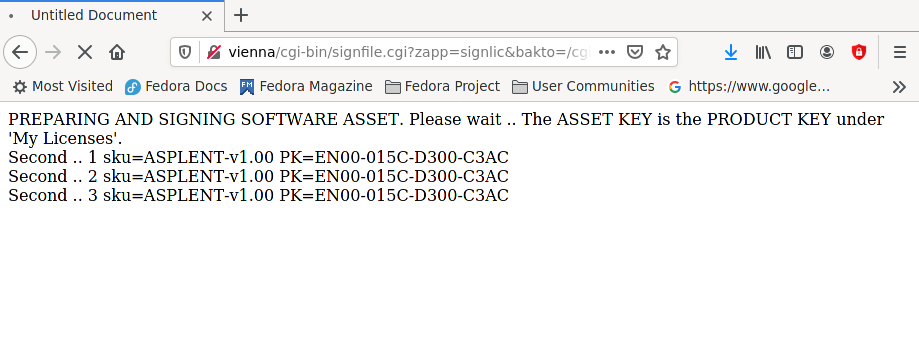
As the license signing is in progress.. your browser will show the following.
Finally, once the license signing is done.. your browser will show the following.
Once the distribution is signed, the screen will refresh and you are presented with your signed distribution that you can download to install the product. (This is shown in the following figure with the red arrow labeled 11.)
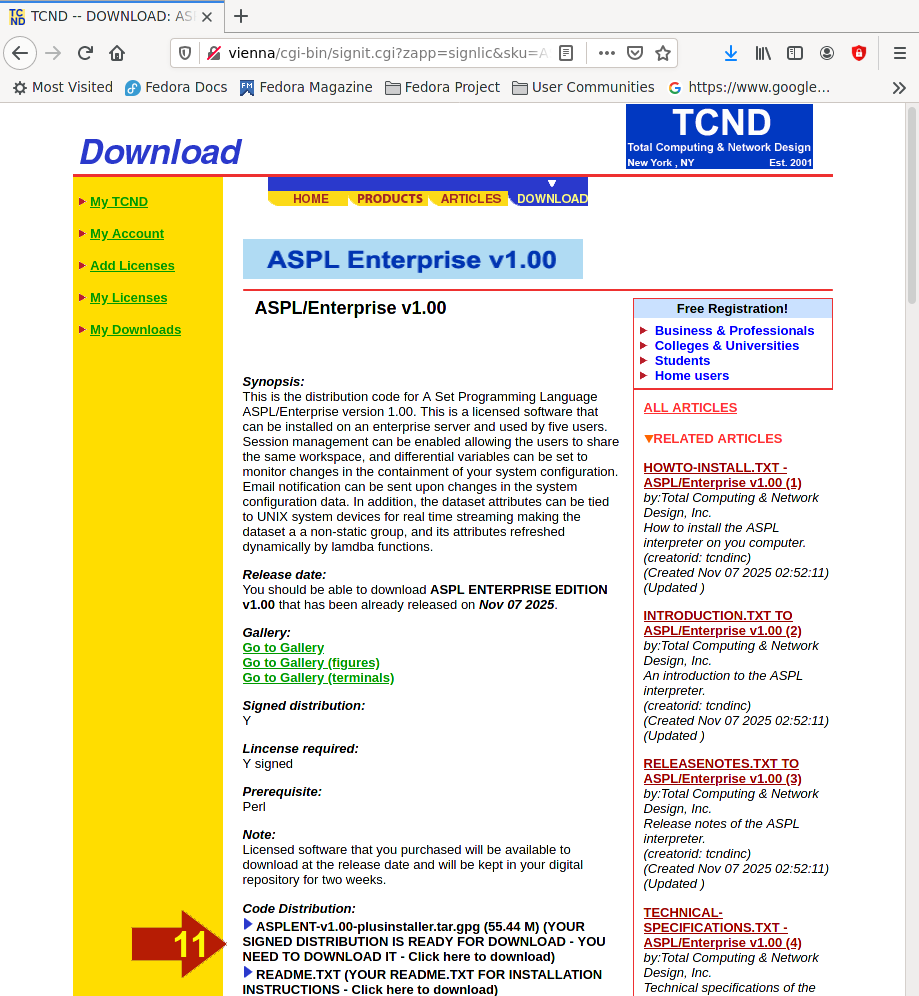
Make sure to download the signed distribution along the README.TXT file that contains the essential information explaining how to install the software on your UNIX system.
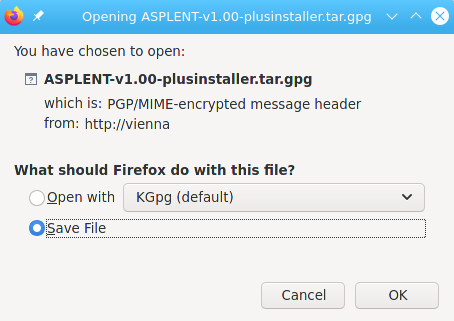
Download the signed distribution along the README.TXT file. Both files will be available on the server for ten days. To download the distribution, simply click on it and select save, as shown in the following figure.
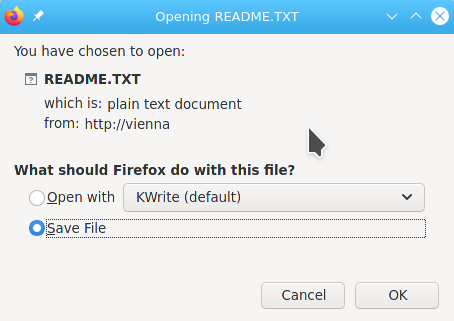
Download the README.TXT file along the distribution, it contains the information on how-to install the software. To download the README.TXT, simply click on it and select save, as shown in the following figure.
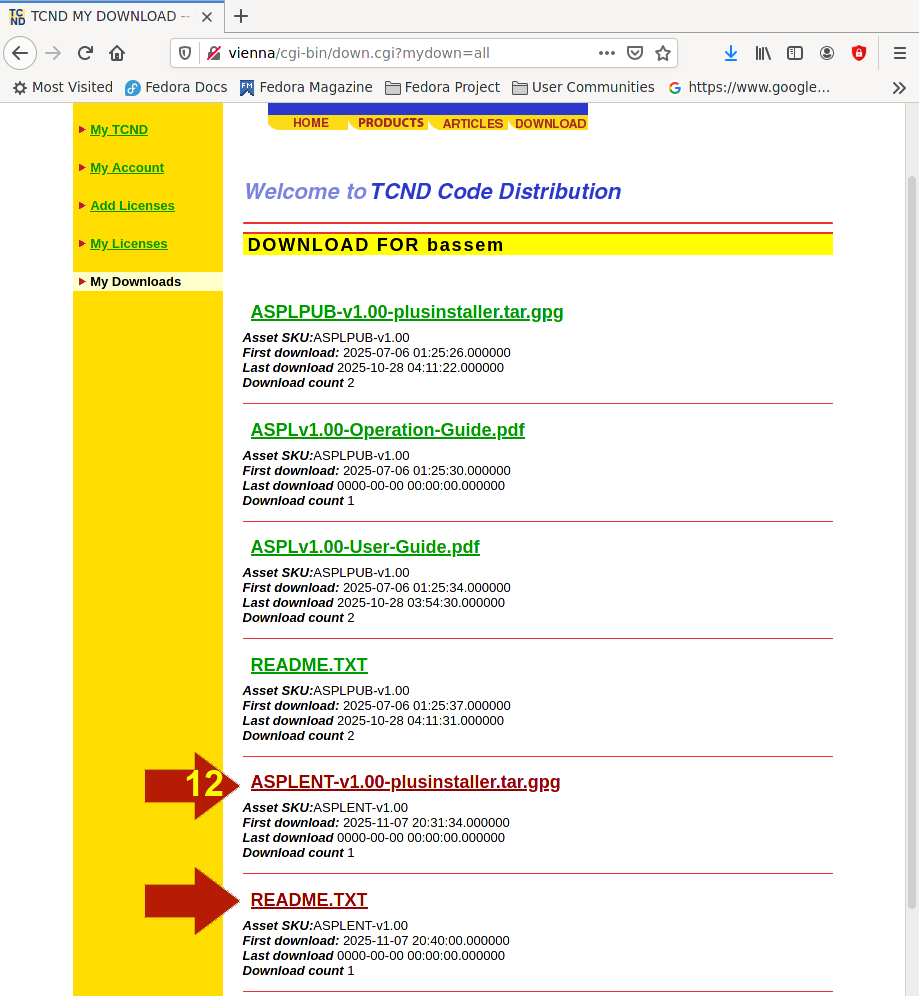
You can check your downloads by navigating to My Downloads. At any time, while you are signed to TCND.COM, click on DOWNLOAD in the top navigation bar, then in the left margin click on My Downloads. The following figure shows that the software we just downloaded (shown with the red allow labeled 12).
To install the software, copy both the signed distribution and its README.TXT file to a directory on your system, then follow the instructions in the README.TXT file. Keep your distribution and the README.TXT file in a safe place.