ASPL Installation Guide v 1.00
© 2025 Bassem W. Jamaleddine
Users using the ASPL calculator can share the same namedspace, and work collaboratively, issuing set operations on the objects defined in that namespace. This capability is only available in ASPL Entreprise where sessions management can be enabled.
In the previous subchapter we showed how euler installed ASPL as a COLLOBARATIVE MASTER installer. euler installed ASPL in the shared directory /opt/euler that has the ACL set to the UNIX group euler. The two users: pascal and moran, want to work collabaratively on the objects saved in the same namedspace as euler's.
In this subchapter, we show how to install the product for moran as secondary owner of the distribution: moran installation is performed a COLLOBARATIVE SLAVE installer. The next subchapter details the installation performed for pascal; it is a repeat of moran installation (since both users installation is a COLLOBARATIVE SLAVE installation to euler's).
Recall, in the previous subchapter, root created the shared directory /opt/euler
# mkdir /opt/euler
# chown euler /opt/euler
# chgrp euler /opt/euler
# perl asplinstall -foruid euler -forgid euler -homedir /home/euler -shareddir /opt/euler -asplver ASPLv1.00 -itype 4 -gpg
In this subchapter, we will add the userid moran, and make the group name euler the user's initial login group.
# adduser -g euler moran
# su - moran
# cd /home/euler/aspldisgnedent
# perl asplinstall -foruid moran -forgid euler -homedir /home/moran -shareddir /opt/euler -asplver ASPLv1.00 -itype 41 -gpg
moran and pascal installations are quite similar. In this subchapter, we show how user moran installed ASPL as COLLOBARATIVE SLAVE installer to use euler's ASPL. In the next subchapter, we show how user pascal installed ASPL as COLLOBARATIVE SLAVE installer to use euler's ASPL.
The following section consists of nine figures detailing the installation procedure for the user moran as COLLOBARATIVE SLAVE installer.
■ Install ASPL Enterprise as a COLLOBARATIVE SLAVE for moran
In this section we show in details how to add moran as a COLLOBARATIVE SLAVE to use euler ASPL installation (that was already done in the previous subchapter "Install ASPL Enterprise as a Collobarative Calculator: Master User").
Login as moran, then change directory to /home/euler/aspldisgnedent. Since moran is part of the group euler, then he can run the installer from the directory where euler already downloaded and installed the ASPL distribution.
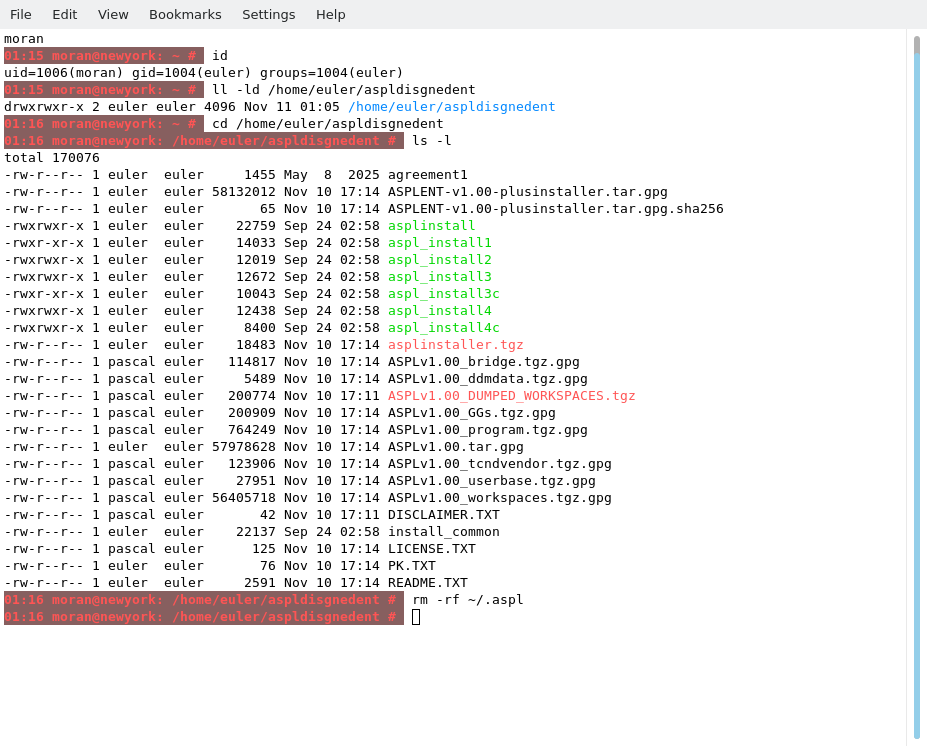
moran does not need to execute any commands shown in the README.TXT, since the product has already been extrated by euler. moran only needs the EMAIL and the ASSET KEY that are required when invoking the installer. As moran is installing ASPL, and since ASPL distribution has been registered to the userid euler, then moran will use euler's binding email and asset key while installing the software.
The following figure show the README.TXT and the two entries for the EMAIL and the ASSET KEY.
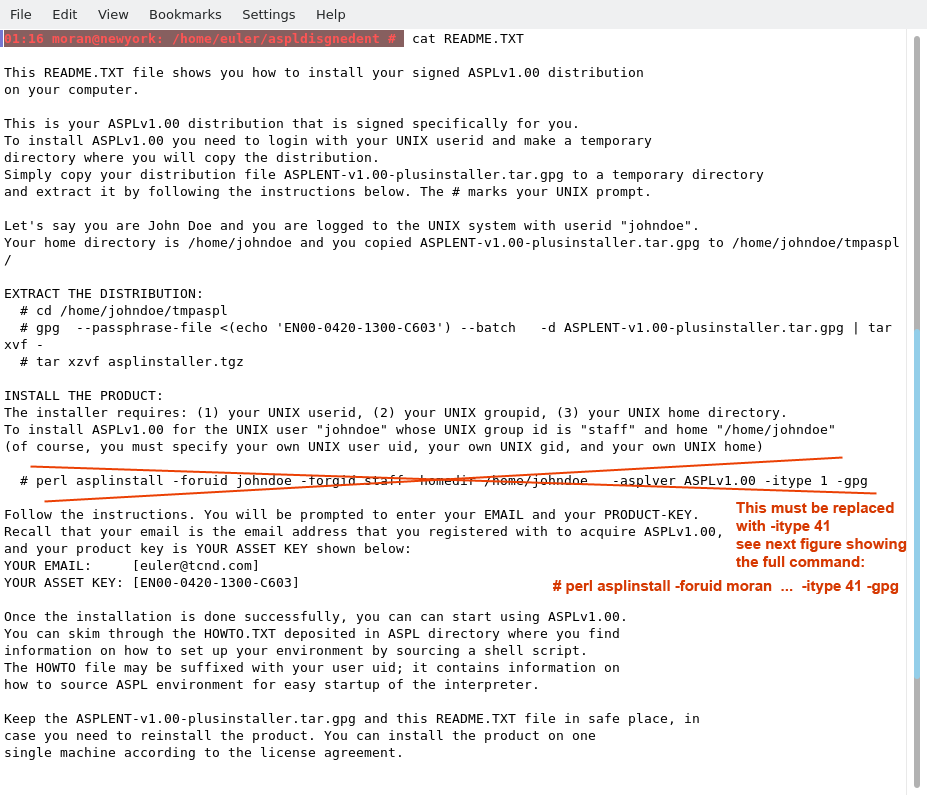
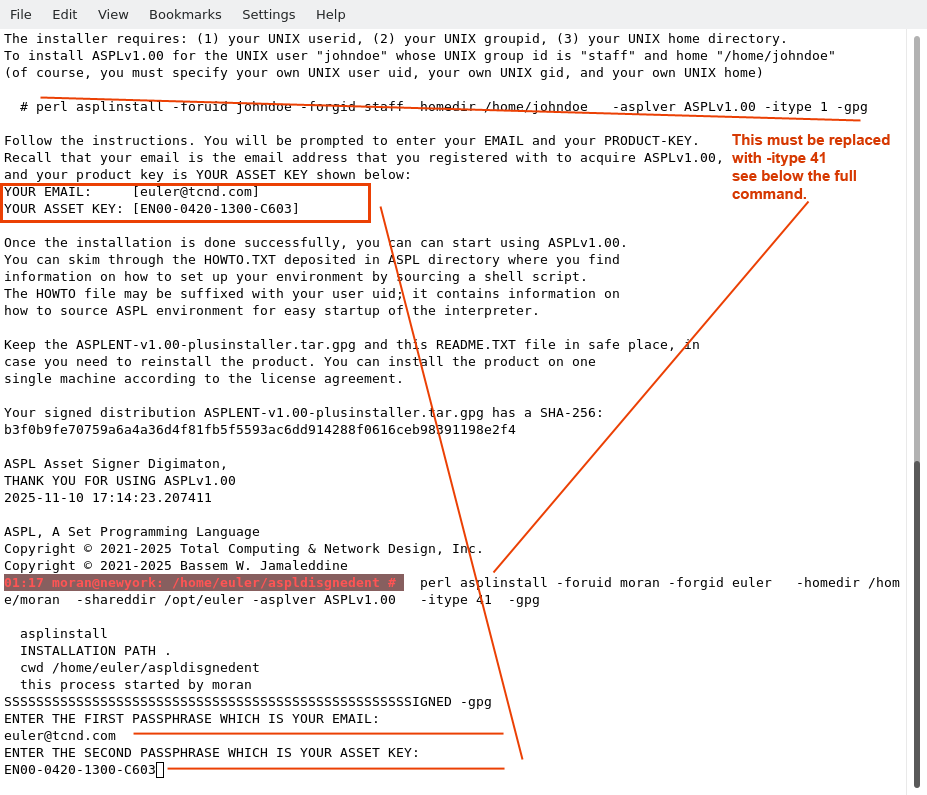
The README.TXT shows the installation for a standalone (option -itype 1), so moran ignores this installer command, and uses the following command to install ASPL as a COLLOBARATIVE SLAVE installation (-itype 41) to share euler's by specifying -shareddir /opt/euler and -forgid euler
# perl asplinstall -foruid moran -forgid euler -homedir /home/moran -shareddir /opt/euler -asplver ASPLv1.00 -itype 41 -gpg
Notice the option -shareddir /opt/euler so that moran will share euler ASPL containments. Also -homedir /home/moran where .aspl will be created.
When running the installer, we used the EMAIL and the ASSET KEY from the README.TXT.
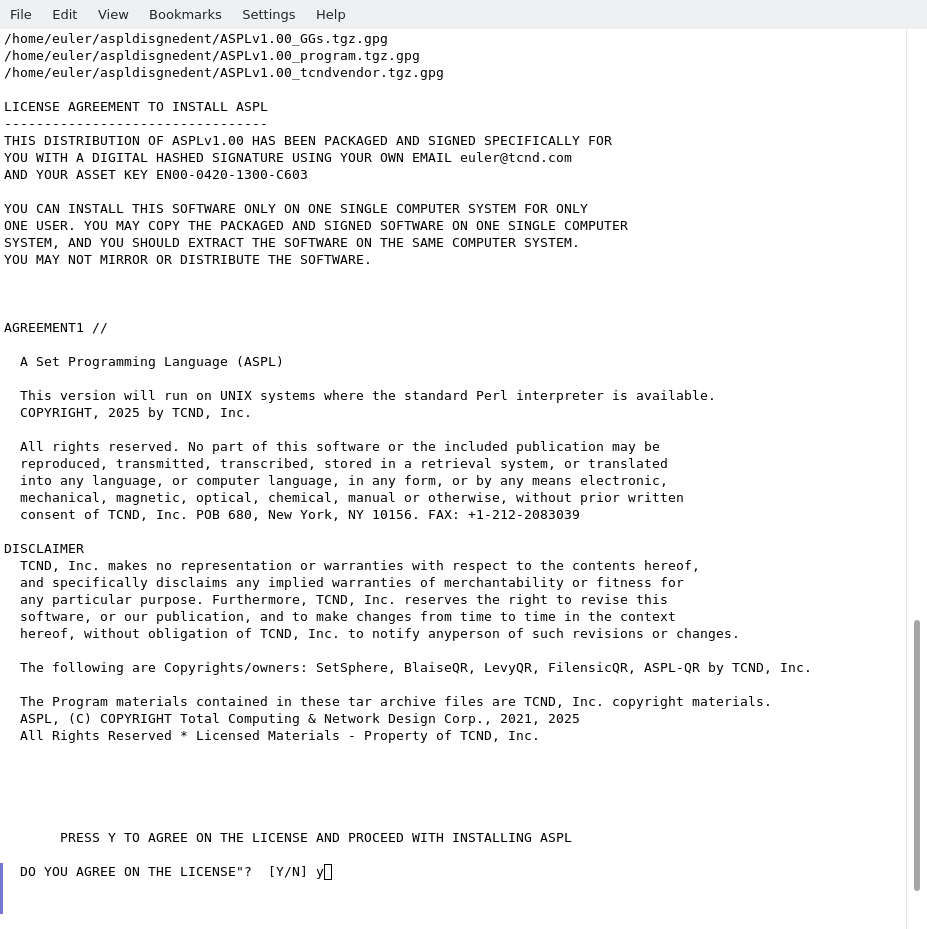
Accepting the agreement to start the installation.
The software is automatically installed as show in the following figure.
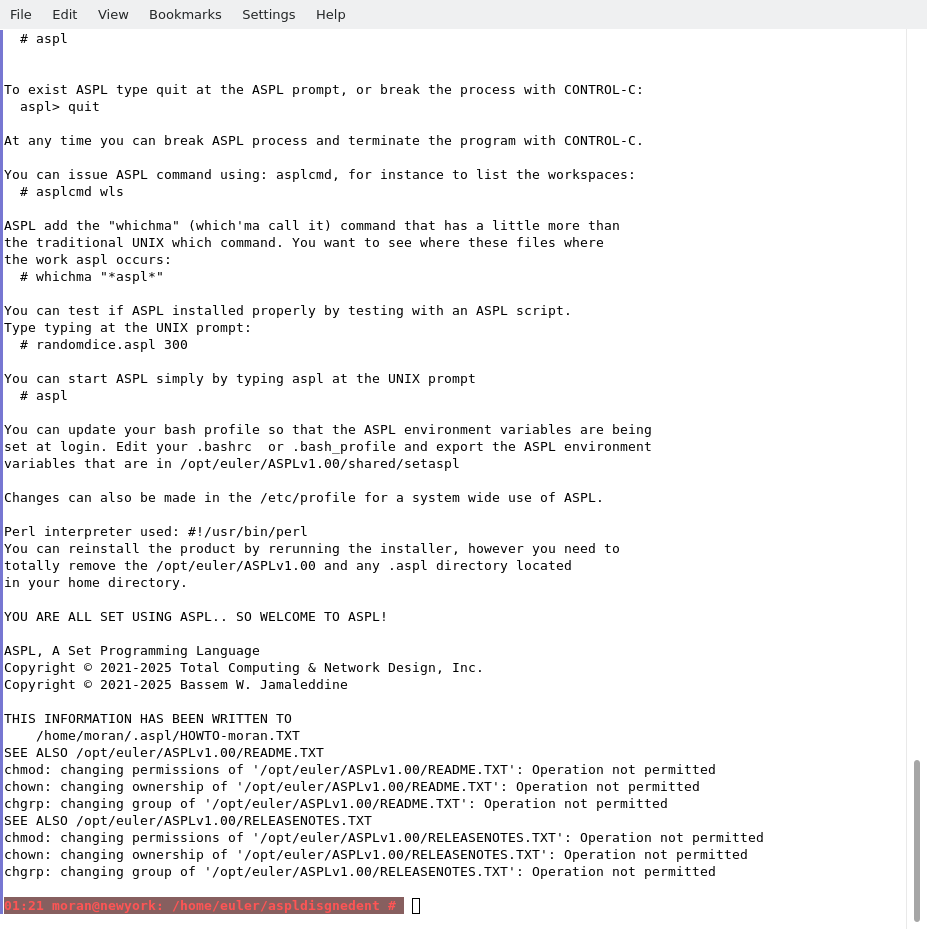
When you run the installer, pay special attention to the output written on the screen, where you will find valuable information on how to source ASPL environment, and test your installation. The same output is written to the file HOWTO suffixed with the user name, in this particular case it is in /home/moran/.aspl/HOWTO-moran.TXT. In this file, locate the line containing the setaspl command, this will display the command to source the environment and start using ASPL.
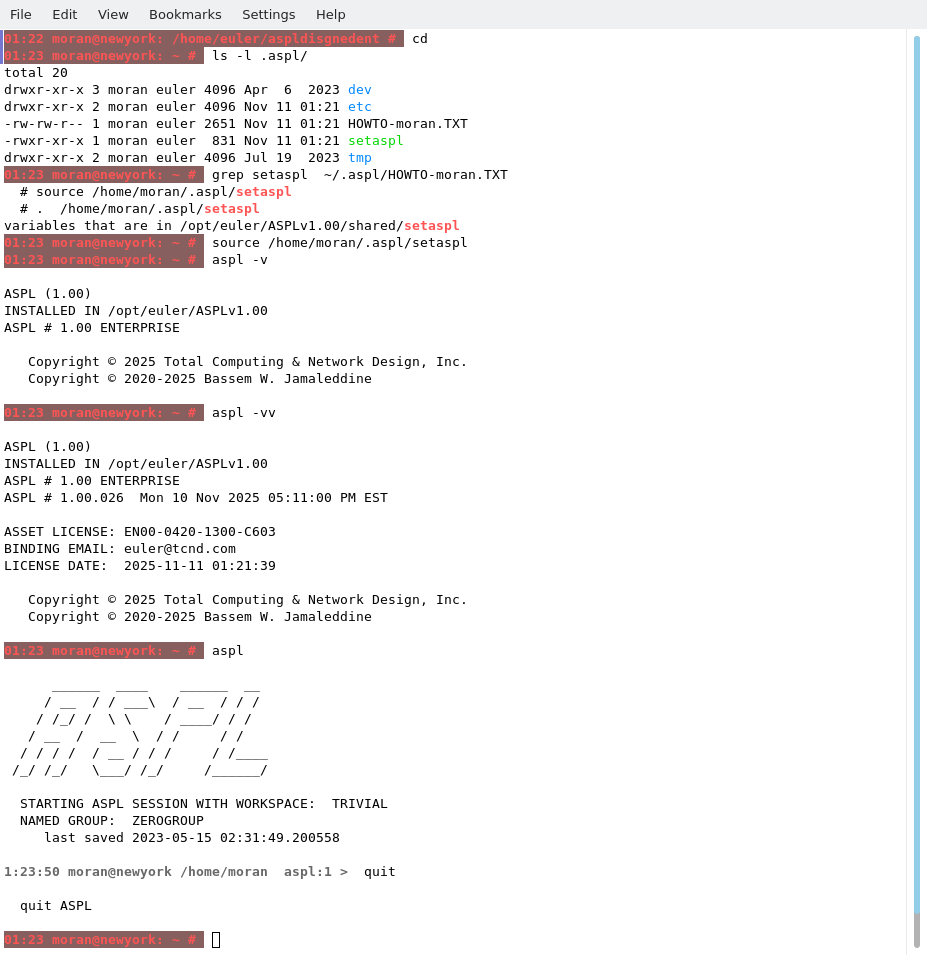
Now the installation is complete. The user moran can test the installation. moran locates the commands to source the ASPL environment into the current bash session ( simply by grepping for setaspl in his HOWTO file). moran sourced the environment, started ASPL, then issued some commands:
# aspl -v
display the version of ASPL
# aspl -vv
display the license and build of ASPL
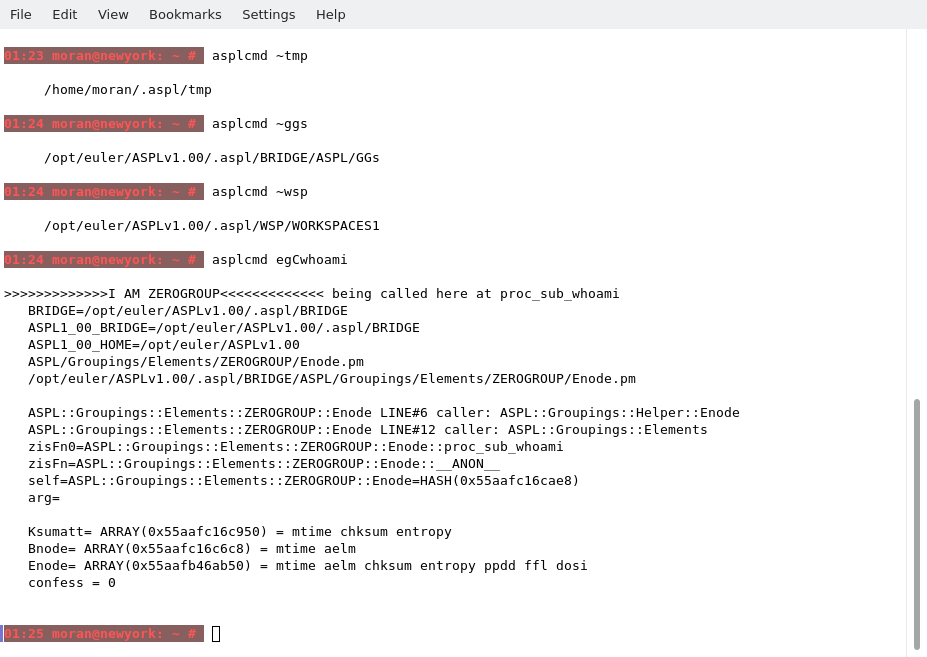
The following figure shows:
moran's ~tmp is /home/moran/.aspl/tmp, moran's ~ggs is euler's (since moran ASPL install is using euler's GG-Container), moran's ~wsp is euler's (since moran ASPL install is using euler's namedspaces), and when pinging the egC-Container (moran is using euler's egC-Container).
Starting aspl with -verbose will also reveal ASPL containments.
# aspl -verbose
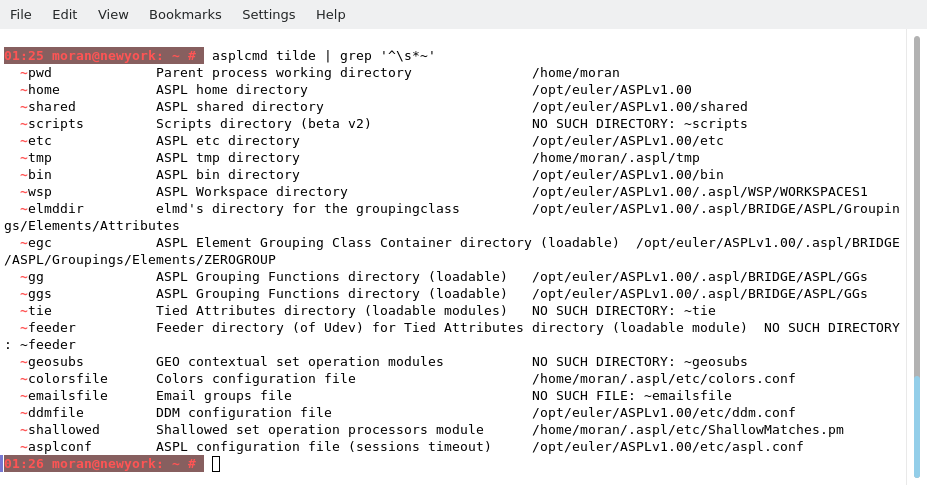
The tilde command, shown in the figure below, reveal the location of the tilde-expansions of moran's ASPL installation.
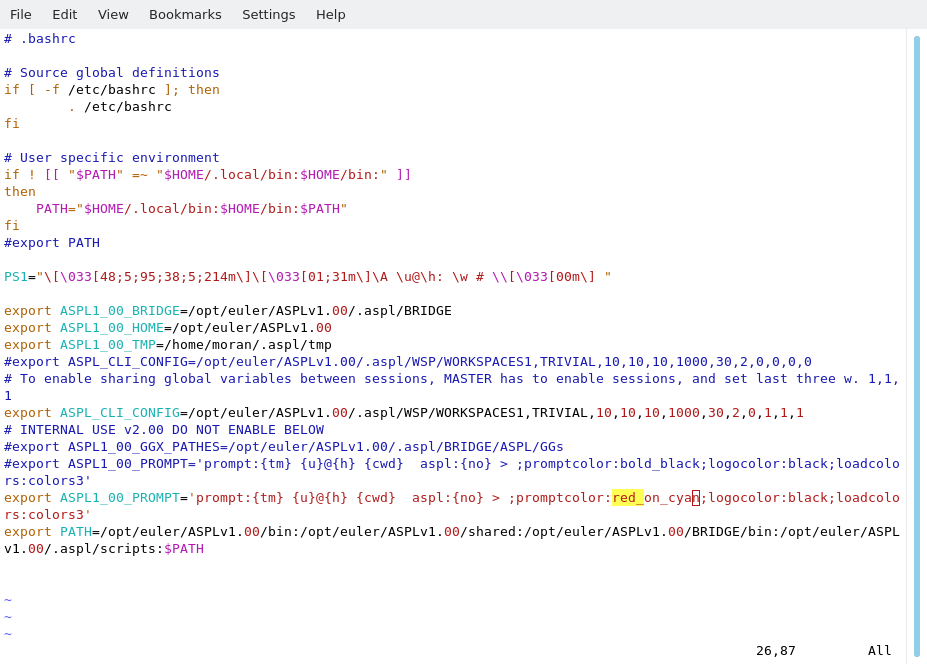
To make ASPL environment variables available at login, moran's .bashrc can be updated with the content of setaspl (as shown in the following figure). In the export ASPL1_00_PROMPT, the promptcolor is set to lightred so that moran's ASPL prompt can be distinguished from the others.
Now we logout from moran, then login again, and start ASPL.
THIS COMPLETE THE INSTALLATION FOR moran
■ How to Remove ASPL for moran
Removing ASPLv1.00 is simply done with two commands. For example, userid moran logins to the UNIX system and issues the following commands to remove ASPLv1.00
# su - moran
# rm -rf ~/.aspl