ASPL Installation Guide v 1.00
© 2025 Bassem W. Jamaleddine
The licensed softwares on TCND.COM are digitally signed distributions. This chapter consists of ten figrues illustrating step-by-step how to download a licensed software.
■ How to Download Licenses for ASPL Professional
In the following example, we assume the user already purchased a license for ASPL/Professional v1.00.
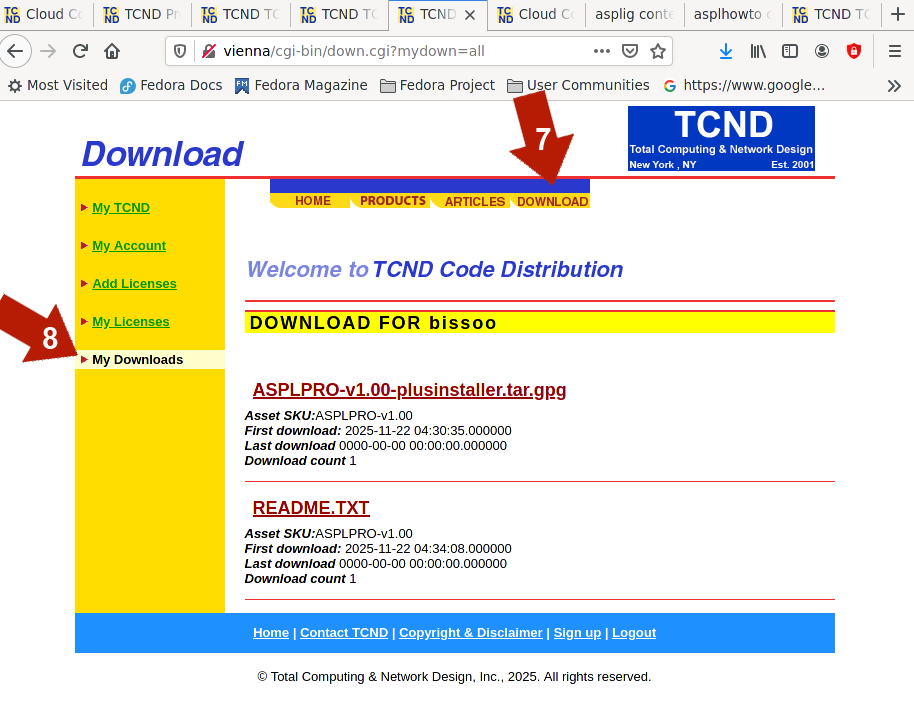
Check the license profile: clik on DOWNLOAD in the top navigator (shown with the red arrow labeled 1), then click on "My Licenses" in the left margin (shown with the red arrow labeled 2). Here you see the licensed software that is available for you to download. The software ASPLPRO-v1.00 is shown.
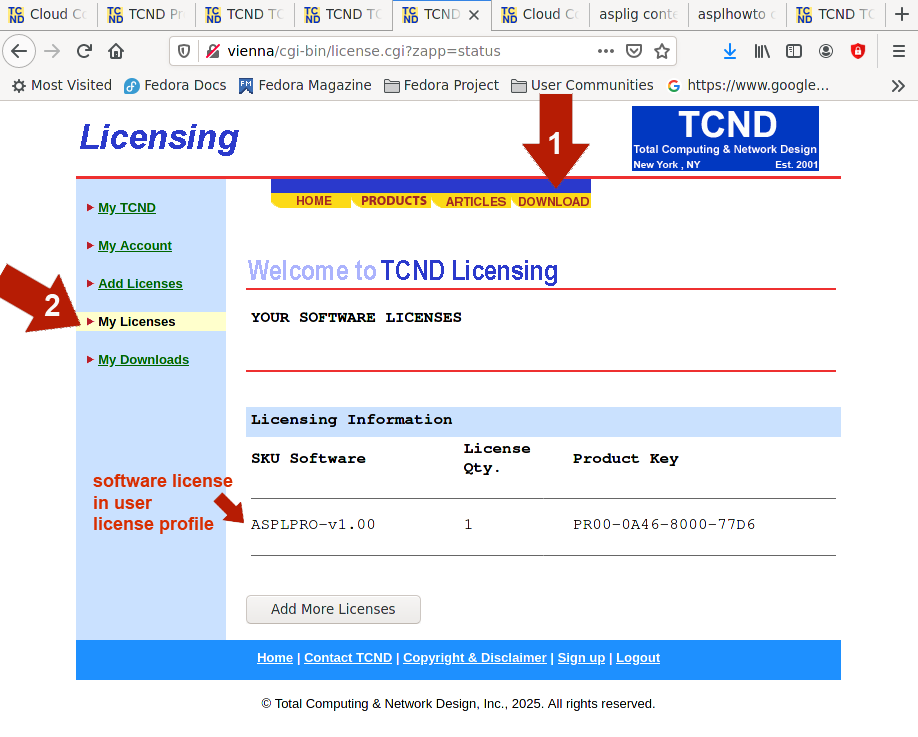
Again click on DOWNLOAD of the top navigator (show with the red arrow labeled 3), and scroll until you locate the software ASPL/Professional v1.00 (shown with the red arrow labeled 4). Click on it, so you will go the selected software download screen.
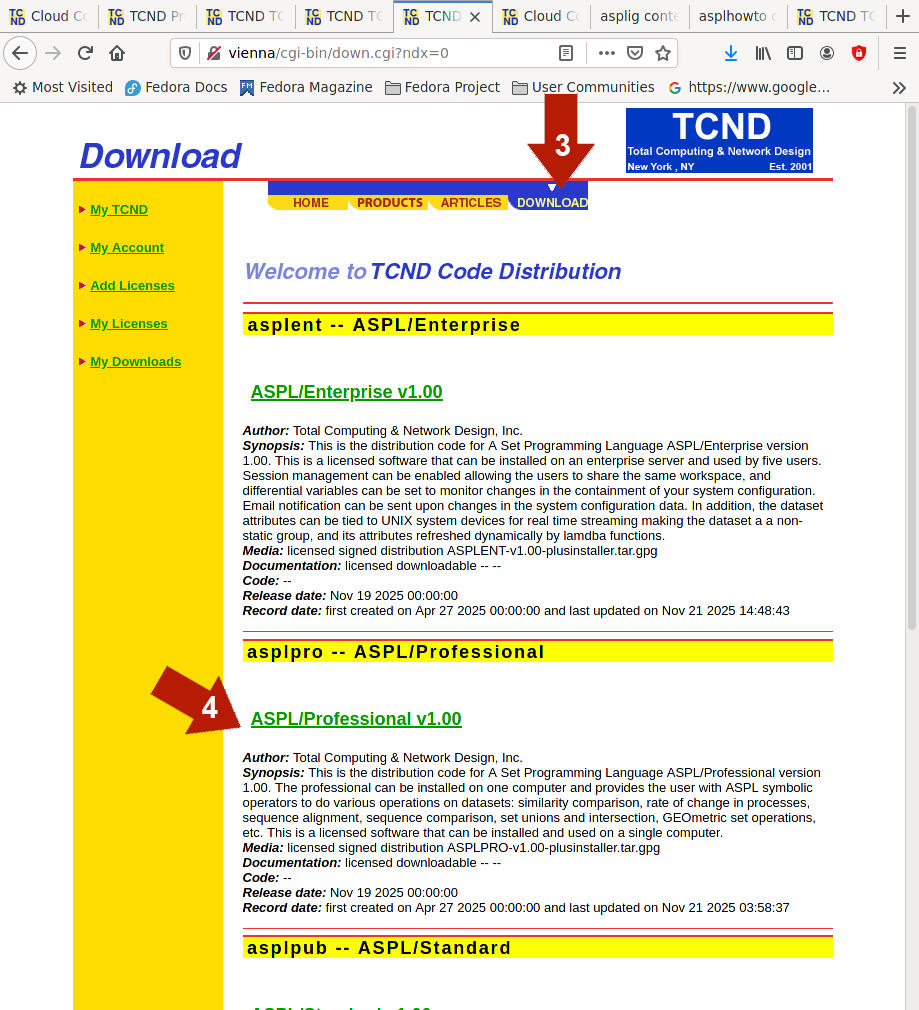
The download screen for the software "ASPL/Professional v1.00" is shown in the following figure. Since this software is to be downloaded for the first time, then the message in green is displayed (shown with the red arrow labeled 5). Click on the green message, so to initialize the signing of your distribution.
Wait until your distribution is signed. The browser displays the progress while signing your distribution.
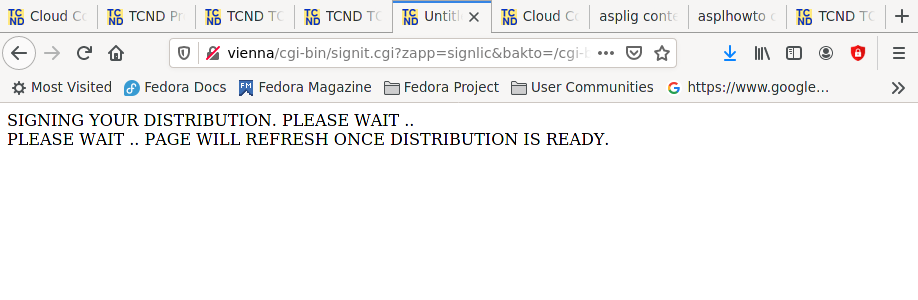
Wait.. The browser displays the progress of signing your distribution.
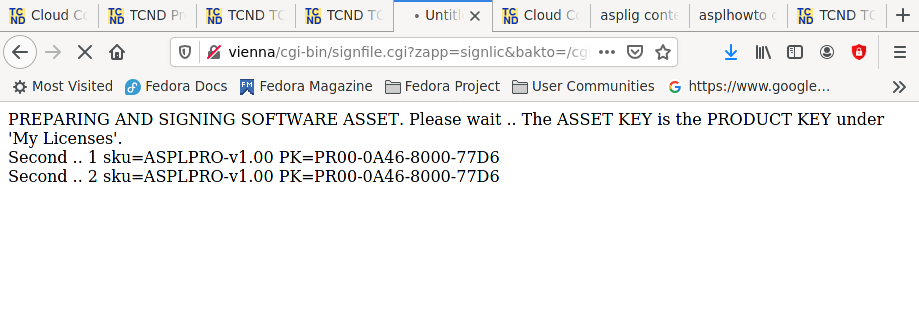
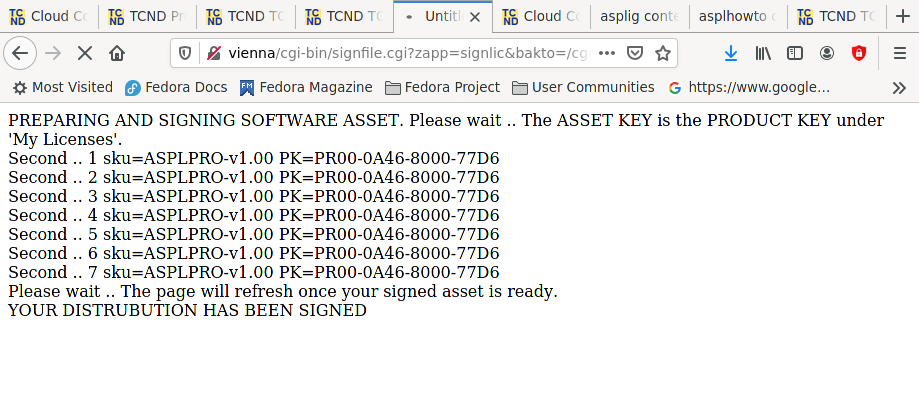
Wait.. until finally your distribution is being signed. You will see the message "YOUR DISTRIBUTION HAS BEEN SIGNED".
Once the distribution is signed, your browser will refresh, and you will see the download screen of the selected software, but this time it showing the signed distribution ready for download (shown with the red arrow labeled 6).
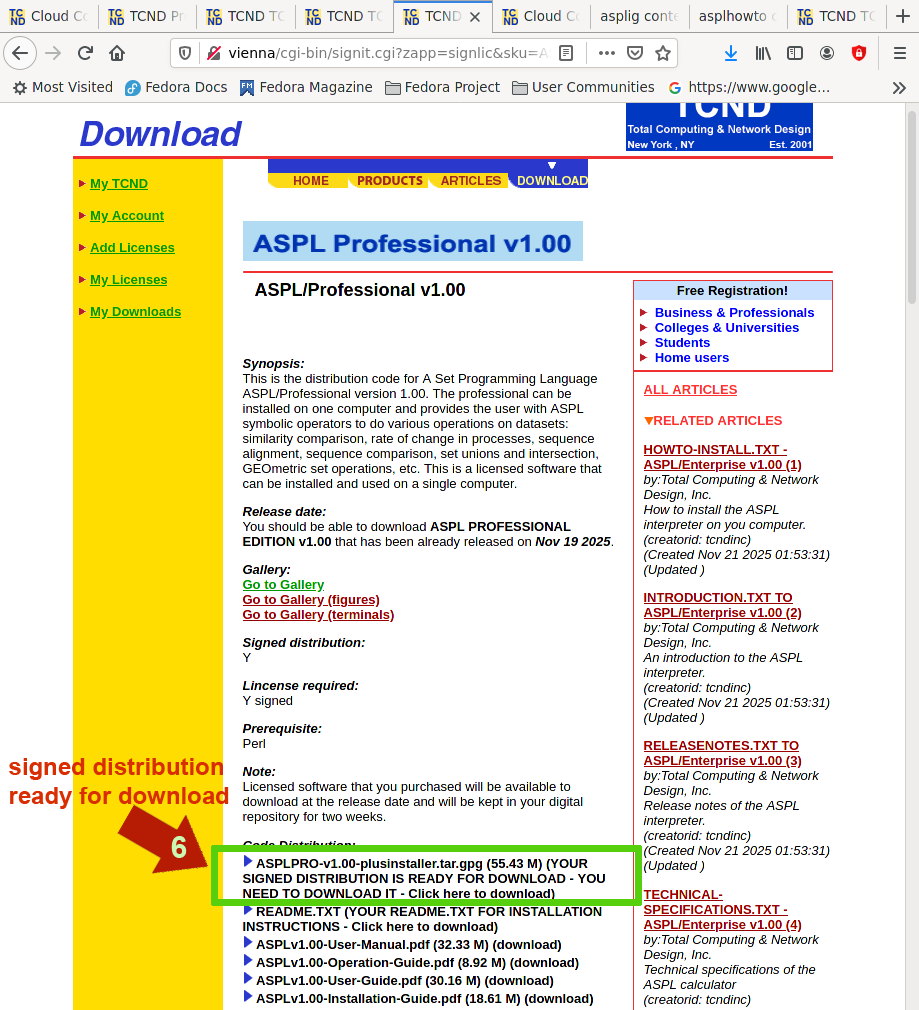
Click on the signed distribution to download it. Click on the signed distribution to download it.
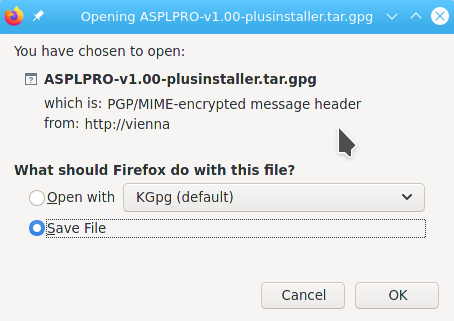
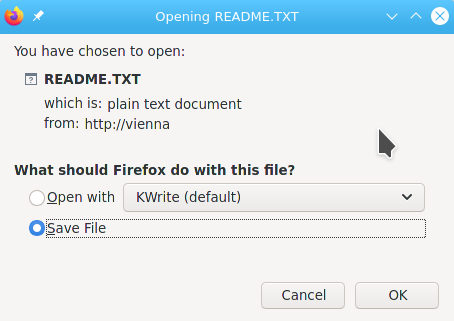
Click on the signed distribution README.TXT to download it.
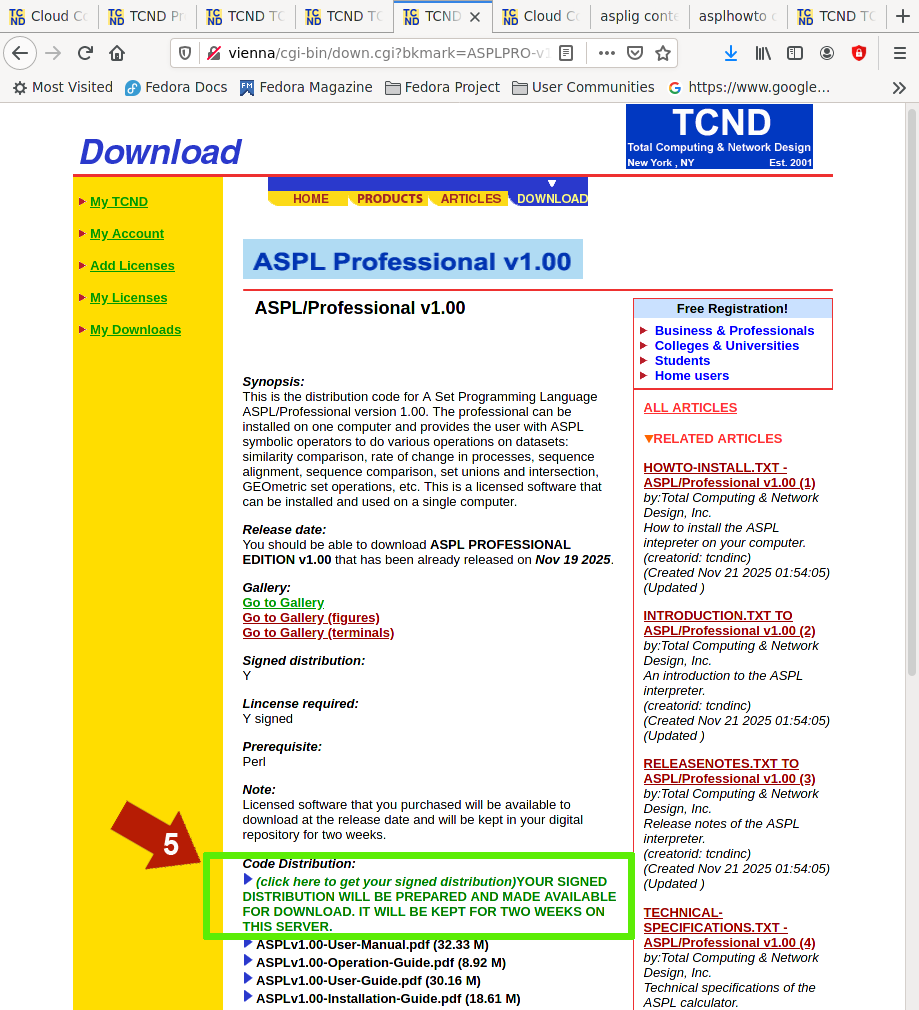
You can always check whatever you downloaded by clicking on DOWNLOAD in the top navigator (show with the red arrow labeled 7), the clicking on "My Downloads" in the left margin (show with the red arrow labeled 8).